Gemini AI Photo Editing Prompts That Work
Copy professional Gemini photo editing prompts for portraits, products, backgrounds, lighting, cleanup, style transfer, and social formats.
Turn this inspiration into your own images.
Bring a brief or a reference image. Explore the possibilities with four AI models.
Free credits to start · No credit card

Gemini AI photo editing prompts are written instructions that tell Google Gemini what to change in an uploaded image and what it must preserve. Effective prompts identify the subject, target area, required edit, visual style, composition, and protected details. This guide provides reusable templates for professional portraits, products, interiors, cleanup, lighting, and content formats. If you are new to the process, start with a step-by-step guide to editing photos with AI before diving into prompt templates.
Methodology: This guide is based on current Google Gemini product documentation and prompting guidance, supplemented by AvocAIdo's published reference-based image workflow. For a full list of AI models for image generation, see AvocAIdo's model overview.
Gemini photo editing prompts in short
- Google recommends making image-editing instructions direct and specific rather than relying on vague style words.
- A reliable prompt covers 6 elements: subject, composition, action, location, style, and editing instructions.
- Protected attributes should be named explicitly, including facial identity, skin texture, logos, text, product geometry, and framing.
- Complex work is more reliable when divided into 2 or 3 local editing turns instead of requested in one large transformation.
- Google supports reference-based styling and promotes formats such as 2:3, 9:16, and 21:9, although it warns that aspect ratios can drift.
- Every professional result should be checked for altered branding, misspelled text, warped hands, false reflections, and inconsistent shadows.
Checklist for writing a professional editing prompt
- Identify the exact object, person, or image region to edit.
- Describe one primary change per editing turn.
- State which facial, product, or architectural features must remain unchanged.
- Protect the original crop, perspective, and camera angle when required.
- Specify the intended lighting direction and color temperature.
- Name the desired finish, such as natural, editorial, cinematic, or commercial.
- Request realistic shadows and reflections after changing a scene.
- Include the required aspect ratio when adapting an image.
- Review all visible text, logos, hands, edges, and repeated patterns.
- Correct only the failed area in the next prompt.
Made with AvocAIdo
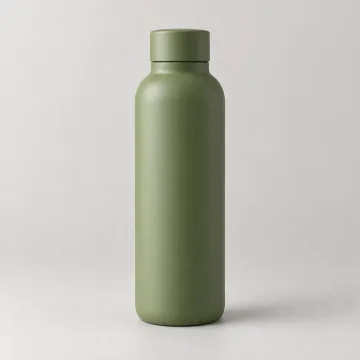
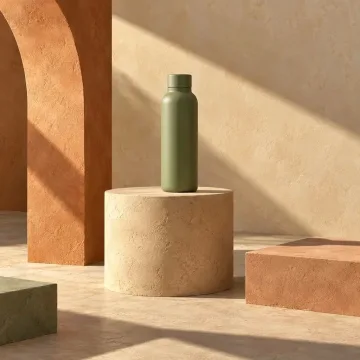
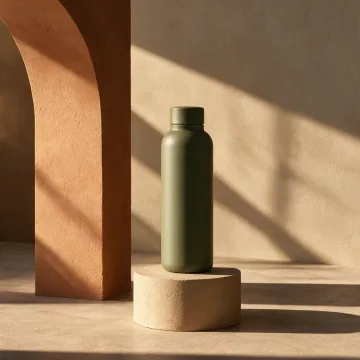
Your product. Your style. Four possibilities.
Turn a product photo and a style reference into studio-style images. Compare AI models in one place.

Saved examples · 4 AI models


Free credits to start · No credit card
How do Gemini AI photo editing prompts work?
Gemini allows a user to upload an image and request edits in natural language. According to Google Help, the core interaction is straightforward: "Upload an image and ask Gemini to make edits." (zdroj: Google Help)
The system can make local changes, combine photographs, preserve a character or object across multiple edits, and apply the texture, color, or style of a reference image. Google describes this as "precise, conversational editing," which means the first output can become the input for a narrower follow-up instruction. As one of the leading multimodal AI models like Gemini, the platform processes image and text instructions together in a single conversation.
Gemini currently presents its image capabilities under the Nano Banana 2 name. Older articles may still refer to Gemini image generation or Gemini 2.5 Flash Image, but current Gemini image documentation uses Nano Banana 2.
A useful Gemini AI photo editing prompt should answer 3 fundamental questions:
- What should change?
- Where should it change?
- What must remain untouched?
The third question is essential for professional work. "Improve this portrait" gives the model broad permission to reinterpret the photograph. "Reduce temporary blemishes while preserving facial identity, natural pores, skin tone, hairstyle, clothing, and background" creates clearer boundaries.
What is the six-part formula for reliable prompts?
Google's official image prompting guidance recommends considering 6 elements: subject, composition, action, location, style, and editing instructions. (zdroj: Google Blog)
For photo editing, use the formula in this order:
- Subject: Identify the person, product, room, or object.
- Composition: Describe the crop, perspective, framing, and position.
- Action: State what the subject is doing or how it should appear.
- Location: Define the existing or replacement environment.
- Style: Specify the photographic or design treatment.
- Editing instructions: State the exact change and protected details.
A complete prompt can follow this template:
Edit the uploaded image of [subject]. Keep the original [composition] and show the subject [action] in [location]. Apply a [style] finish. Change only [target area and requested edit]. Preserve [identity, geometry, logo, text, texture, lighting, or other protected details].
For example:
Edit the uploaded product photograph. Keep the centered composition, original camera angle, packaging shape, label placement, logo, and printed text. Replace only the background with a soft neutral studio surface. Apply clean commercial lighting with a realistic contact shadow. Do not redesign or simplify the product.
This structure is longer than "make it professional," but every phrase has a job. It limits unintended changes while giving Gemini enough visual direction.
How can identity, composition, and quality be preserved?
Google says Gemini can preserve a character or object's appearance across multiple generations and edits. Preservation is still more reliable when the prompt names the protected attributes individually.
For a portrait, specify facial identity, face shape, eye color, hairstyle, skin tone, age, expression, and natural skin texture. For a product, protect geometry, dimensions, packaging, logo placement, typography, materials, and surface texture.
Use this preservation block at the end of a prompt:
Preserve the subject's identity, facial proportions, natural skin texture, hairstyle, clothing, pose, camera angle, crop, and background. Do not reshape facial features or add accessories.
For products:
Preserve the exact product geometry, proportions, materials, logo, label layout, printed text, cap shape, camera perspective, and crop. Do not invent packaging details.
For interiors:
Preserve the room dimensions, wall positions, window placement, permanent fixtures, lens perspective, and architectural geometry. Do not add doors, windows, or structural elements.
Avoid combining more than 1 major structural change with detailed retouching. Replace the background first, inspect the subject's edges, and correct lighting in a second turn. This 2-step process makes it easier to identify where visual drift occurred.
Professional portrait retouching prompt templates
Portrait prompts should distinguish temporary details from identity-defining characteristics. A professional retouch should not automatically mean perfectly smooth skin or altered facial proportions. To make your AI-edited photos look professional and on-brand, use the templates below as starting points.
Natural skin retouching
Retouch only temporary blemishes and minor redness on the face. Preserve facial identity, pores, freckles, fine lines, skin tone, face shape, eye shape, teeth, and natural texture. Keep the original lighting, expression, hairstyle, clothing, crop, and background. Use a subtle editorial finish without plastic-looking skin.
Corporate headshot correction
Refine this corporate headshot with balanced exposure, neutral white balance, and subtle contrast. Reduce distracting flyaway hairs without changing the hairstyle. Preserve facial identity, natural skin texture, clothing, body proportions, and the original camera angle. Keep the result realistic and suitable for a professional profile.
Local under-eye adjustment
Edit only the under-eye area. Reduce temporary darkness slightly while preserving natural contours, fine lines, skin texture, and facial identity. Do not change the eyes, eyebrows, cheek shape, nose, skin tone, lighting, or any other part of the photograph.
Portrait background replacement
Keep the person exactly as photographed, including facial identity, pose, hair edges, clothing, and proportions. Replace only the existing background with a softly lit neutral studio background. Match the new background's light direction and depth of field to the subject. Add no new objects.
A local prompt should repeatedly use "only" and "preserve." These terms define the editing boundary more clearly than adjectives such as beautiful, polished, or flawless.
Product and e-commerce photo editing prompts
Product editing requires strict controls because a visually attractive result can still be commercially unusable if the model changes a logo, label, ingredient line, or physical shape. Understanding the must-have features in AI photo editing tools helps brand managers choose the right workflow for these tasks.
Clean marketplace photograph
Edit the uploaded product photo into a clean marketplace image. Preserve the exact product geometry, packaging dimensions, label design, logo, colors, printed text, material, and camera perspective. Replace only the background with a simple light studio setting. Add a realistic contact shadow directly beneath the product.
Premium campaign image
Place the uploaded product in a premium dark studio scene with controlled side lighting and restrained highlights. Preserve its exact proportions, packaging, logo, typography, surface finish, and color. Create physically plausible reflections and shadows. Do not add decorative text or redesign the product.
Color correction without redesign
Correct the exposure, white balance, and color cast in this product photograph. Keep the product color faithful to the uploaded image. Preserve the packaging shape, label, logo, text, reflections, crop, and background arrangement. Do not increase saturation excessively.
Reference-based styling
Apply the lighting mood, color palette, surface treatment, and photographic style of the reference image to the product photo. Preserve the product's exact geometry, branding, printed text, materials, and camera angle. Do not copy objects or logos from the reference.
Google states that Gemini can apply texture, color, or style from a reference photo to a subject. Keep reference roles explicit: one image is the product to preserve, while the second supplies only the visual style.
Real estate and interior photo editing prompts
Interior editing should protect architectural truth. A brighter photograph is an edit, while moving windows or enlarging a room changes the represented property.
Natural exposure correction
Balance the interior and exterior exposure while preserving the room layout, window placement, furniture, materials, and architectural geometry. Recover visible detail in bright windows without creating an artificial sky. Keep shadows natural and avoid an exaggerated high-dynamic-range effect.
Remove a temporary object
Remove only the loose cable beside the desk. Reconstruct the floor and wall behind it using the surrounding textures and perspective. Preserve all furniture, fixtures, room dimensions, lighting, shadows, crop, and architectural details.
Virtual styling concept
Add restrained contemporary furniture to the empty room while preserving the exact walls, doors, windows, flooring, fixtures, perspective, and dimensions. Match the furniture scale to the room and create realistic contact shadows. Do not alter permanent architectural elements.
Professional review should compare the result with the original at least once. Check straight lines, window edges, repeated floor patterns, mirrors, and reflections, because these areas quickly reveal invented geometry.
How should backgrounds, lighting, and objects be edited?
Google recommends that modifications be "direct and specific." A single prompt should identify the target region and the visual logic required after the change. Research on AI photo editing prompts tested across ChatGPT, Gemini, and other models confirms that specific prompt structures yield more realistic results across different AI tools.
Background removal
Remove the background and isolate the subject with clean, natural edges. Preserve fine hair, transparent details, clothing edges, product geometry, colors, and internal shadows. Do not cut into the subject or add an outline.
Scene expansion
Expand the image into a 21:9 wide composition by extending the existing environment on the left and right. Keep the original subject unchanged and in the same position. Continue the background perspective, lighting, texture, and depth naturally. Do not stretch the subject.
Lighting correction
Correct the underexposure while preserving highlight detail and natural skin tones. Lift the midtones gently, maintain realistic shadow depth, and keep the original light direction. Do not flatten the image or add artificial light sources.
Object cleanup
Remove only the distracting sign in the upper-right background. Reconstruct the area using the surrounding wall texture, perspective, and lighting. Preserve the subject, crop, colors, shadows, and every other object.
If an object removal creates a false shadow or repeated texture, use a second instruction:
Correct only the reconstructed wall area. Remove the repeated pattern and the remaining false shadow. Preserve the entire subject and all other areas exactly as they are.
How can one photo be adapted for multiple formats?
Google promotes resizing images without cropping important details, but its own prompting guidance also warns that Gemini may struggle to maintain aspect ratios. Treat format adaptation as a generative expansion task and verify the exported dimensions separately. For teams producing content at volume, AI photo editing for brand visual consistency at scale explains how to maintain a unified look across formats.
Vertical social format
Recompose this image as a 9:16 vertical visual. Preserve the subject's identity, proportions, clothing, pose, and original details. Extend the environment above and below rather than stretching the image. Keep clear negative space at the top for a headline, but do not add text.
Marketplace portrait format
Adapt this product photograph to a 2:3 composition. Keep the entire product visible, centered, and unchanged. Extend the existing background naturally while preserving product geometry, branding, text, lighting, and contact shadow.
Wide thumbnail or campaign banner
Expand this photograph into a wide composition suitable for a video thumbnail. Keep the main subject unchanged and position it with clear negative space for later typography. Extend the environment naturally and preserve perspective, light direction, sharpness, and color grading.
Add text only after the composition is approved. Gemini can generate clear text in logos, posters, invitations, and similar visuals, but Google warns that it may occasionally misspell words or struggle with complex typography.
How do creative style-transfer prompts stay controlled?
Style transfer works best when the reference contributes visual treatment rather than content. Specify whether Gemini should borrow color, lighting, texture, mood, or post-processing. Using AI-ready brand style guide templates ensures that style-transfer prompts align with established brand aesthetics.
Editorial color grade
Apply a restrained editorial color grade with soft contrast, muted highlights, natural skin tones, and subtle film texture. Preserve the subject's identity, clothing colors, background content, crop, and image detail. Do not add objects or change the lighting direction.
Cinematic treatment
Give this photograph a cinematic evening treatment using deeper shadows, controlled warm highlights, and subtle atmospheric depth. Preserve all people, objects, branding, text, composition, and geometry. Keep skin tones realistic and avoid excessive teal-and-orange coloring.
Reference style application
Use the reference image only for its color palette, lighting mood, texture, and post-processing. Apply those qualities to the target photograph while preserving the target's subject, composition, facial identity, products, logos, and background structure.
Gemini can also combine photographs into a new creation. When using 2 or more inputs, label each image's role in the prompt so the model does not transfer the wrong face, logo, or object.
How should a failed first edit be refined?
Do not repeat the entire original request with more adjectives. Diagnose the failure and issue a smaller correction.
Use this 3-turn workflow:
- Make one bounded edit: Request the background replacement, object removal, or retouch while listing protected details.
- Review the affected region: Inspect edges, shadows, reflections, text, geometry, skin texture, and surrounding patterns.
- Correct only the failure: Name the exact location and instruct Gemini to preserve everything else.
A useful correction prompt is:
Correct only [specific area]. Restore [missing or altered detail] to match the original image. Preserve all other pixels, subjects, objects, text, lighting, crop, and composition without further changes.
If the face changes after a background edit:
Restore the person's original facial identity, proportions, expression, skin texture, eye shape, and hairstyle using the uploaded original as the identity reference. Keep the new background unchanged. Do not modify clothing, pose, framing, or lighting.
This local, multi-turn approach aligns with Google's examples of conversational editing across successive instructions.

What must be reviewed before exporting?
Professional review should compare the edit with the original, not simply judge whether the new image looks attractive. Inspect the output at both full-frame view and enlarged detail.
Check these 8 areas:
- Facial identity and natural skin texture
- Hands, fingers, teeth, eyes, and hair edges
- Product shape, materials, labels, and logos
- Spelling, punctuation, and typography
- Architectural lines and repeated patterns
- Light direction, contact shadows, and reflections
- Crop, aspect ratio, and subject placement
- Unexpected objects or removed original details
Google applies an invisible SynthID watermark and a visible watermark to Gemini-generated imagery. (zdroj: Google Gemini) Teams should also keep an approved original, an edited master, and final delivery versions as separate files.
Before uploading client portraits or proprietary products, confirm that permission covers AI processing. Review the current Gemini Apps Privacy Hub, remove unnecessary confidential information, and verify the applicable terms for the intended commercial use.
AvocAIdo tip
Prompt templates are useful for isolated edits, but recurring campaigns also need consistent style across different subjects. AvocAIdo lets users upload 1 to 8 reference photos and analyzes lighting, composition, color, and mood. Its structured controls cover lighting direction, color temperature, saturation, textures, and post-processing. The platform also runs 4 AI models in parallel, allowing the user to review different interpretations of one creative direction. Explore the AvocAIdo workflow or read its guide to AI tools for creative professionals. For a broader comparison, see the best AI tools for photo editing compared.
Frequently asked questions
What should I write when asking Gemini to edit a photo?
Identify the exact subject, target area, requested change, style, and protected attributes. Google recommends considering 6 elements: subject, composition, action, location, style, and editing instructions. Finish with a constraint such as, "Preserve facial identity, original crop, lighting direction, and every area outside the selected background."
How do I stop Gemini from changing a face?
Name the identity features that must remain unchanged, including face shape, eye shape, skin tone, hairstyle, expression, and natural skin texture. Make only 1 local change per turn. If identity drifts, upload the original again as the identity reference and ask Gemini to correct only the face while preserving the approved edit.
Can Gemini remove objects from a photograph?
Yes, Gemini supports local edits requested through natural language. Identify the object and its location, then tell the model how to reconstruct the hidden area using surrounding perspective, texture, and lighting. Review at least 3 details afterward: repeated patterns, residual shadows, and damaged edges around nearby subjects.
How can I preserve a product logo and label?
State that the logo, label layout, printed text, colors, and packaging geometry must remain exactly as shown in the source image. Request the background or lighting change separately from product retouching. Inspect the final output at enlarged view because Google warns that generated imagery can contain misspellings or problems with complex typography.
Which aspect ratios can I include in a prompt?
Google's current examples include 2:3, 9:16, and 21:9 compositions. Describe whether Gemini should expand the background above, below, or to the sides rather than stretch or crop the subject. Confirm the exported dimensions independently because Google also notes that the model can struggle with maintaining aspect ratios.
Is one long prompt better than several short edits?
A structured initial prompt is useful, but 2 or 3 focused turns are generally easier to review than one request containing several major transformations. Start with the largest change, inspect the affected region, and issue a local correction. Tell Gemini to preserve every approved area during each follow-up turn.
Is it safe to upload client photographs?
Upload client images only when you have appropriate permission and the workflow complies with applicable confidentiality requirements. Before processing a portrait or proprietary product image, review the current Gemini Apps Privacy Hub and remove unnecessary confidential details. Keep 3 separate files where practical: the original, edited master, and delivery export.
Next step
Test the workflow with one approved image and a narrowly scoped editing prompt. For reference-led style control and 4 parallel model outputs, create an AvocAIdo account. AvocAIdo currently provides 2,000 free credits without requiring a credit card. You can also explore AvocAIdo's pricing plans or browse free online AI photo editing tools to compare your options.
Zdroje
Ready to create your own images?
Bring a brief or a reference image. Explore the possibilities with four AI models.
Free credits to start · No credit card