AI Prompt for Photo Editing That Gets Results
Learn how to write precise AI photo editing prompts that protect identity, products and composition, with templates and troubleshooting fixes.
Turn this inspiration into your own images.
Bring a brief or a reference image. Explore the possibilities with four AI models.
Free credits to start · No credit card

An AI prompt for photo editing is a targeted instruction that tells an image model what to change, what to preserve and how the result should blend with the original photograph. Unlike a generation prompt, it should not redescribe the entire scene. This guide provides a repeatable framework, practical examples and troubleshooting steps for producing more controlled creative assets. If you are new to the process, start with our step-by-step guide to editing photos with AI.
AI photo editing prompts in short
- A precise editing prompt has 5 parts: action, target, intended result, preservation clause and negative constraint.
- Request 1 major change per pass when identity, product geometry or exact composition matters.
- Keep most editing prompts to 1 to 3 short sentences rather than a long text-to-image description.
- For localized edits, coordinate 4 controls: the mask, its boundary, the written instruction and the tool's edit-strength setting.
- Portrait prompts should explicitly preserve facial geometry, age, expression, pose and recognizable features.
- Product prompts should protect exact logos, labels, typography, packaging proportions and surface details.
- Export requirements such as a 1:1 crop, transparent background or copy-safe space should be specified before generating the final asset.

Checklist for writing a precise editing prompt
- Begin with a direct verb such as "replace," "remove," "adjust" or "retouch."
- Identify the exact subject, object or selected region to edit.
- Request only 1 major change in each editing pass.
- Describe the intended color, material, lighting or visual treatment.
- State which people, objects and compositional elements must remain unchanged.
- Protect identity, logos, labels and product geometry explicitly.
- Match the new content to the original light direction, perspective and depth of field.
- Add 1 concise negative constraint for the most likely failure.
- Set crop, aspect ratio and copy-safe space before final export.
- Inspect edges, hands, faces and text at full size before approving the image.
Made with AvocAIdo
Your product. Your style. Four possibilities.
Turn a product photo and a style reference into studio-style images. Compare AI models in one place.
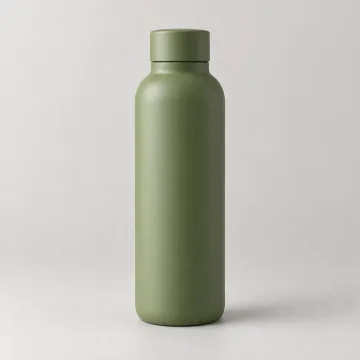

Saved examples · 4 AI models
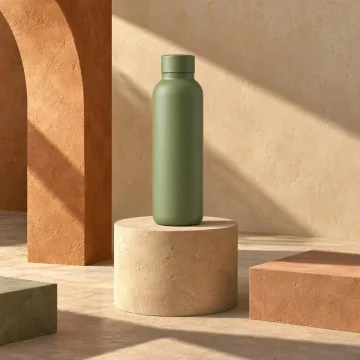
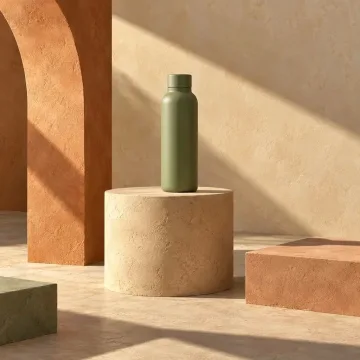
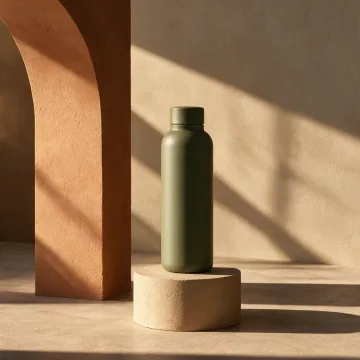

Free credits to start · No credit card
How do AI photo editing prompts work?
An editing prompt modifies an existing image rather than generating every pixel from scratch. The model receives visual information from the uploaded image, then interprets your text as an instruction about which existing pixels should be retained or replaced. To understand how AI photo editing actually works at a deeper level, see our dedicated explainer.
That distinction changes how you should write. A text-to-image prompt may describe the subject, environment, camera and mood from the beginning. An AI photo editing prompt should concentrate on the intended change because the model can already interpret the visible content.
For example, avoid this:
"A woman standing in an office wearing a blue blazer beside a large window."
Use this instead:
"Change the blazer from blue to charcoal grey. Preserve the woman's face, hairstyle, pose, hands, office background and existing window light."
The second version has 2 clear functions: it defines the editable variable and establishes protected variables. Editing guides consistently identify this combination of change and preservation as central to controlled results.
What is the essential anatomy of an AI prompt for photo editing?
A dependable prompt can be constructed from 5 components:
- Action: State what the model should do.
- Target: Identify the exact object or region.
- Desired result: Describe the replacement, correction or visual treatment.
- Preservation clause: List what must remain unchanged.
- Negative constraint: Prevent the most likely unwanted alteration.
Use this reusable formula:
"[Action] [specific target] to [desired result]. Preserve [protected elements]. Do not alter [highest-risk feature]."
A product example would be:
"Replace the background behind the coffee bag with a warm limestone surface. Match the original camera angle, contact shadow and soft light from the left. Preserve the exact bag shape, logo, label text, colors and sealed top. Do not redraw the packaging."
Concrete physical language is more useful than generic phrases such as "make it amazing" or "8K masterpiece." Specify warm side lighting, matte ceramic, shallow depth of field or neutral grey instead. These terms define observable properties rather than subjective quality.
When the task becomes longer than 3 sentences, divide it into multiple passes. A background change, wardrobe change and facial retouch are 3 different editing decisions, even when they belong to the same campaign image.
How should you describe the intended change?
Describe the smallest useful unit of change. Name its location, final appearance and relationship to nearby elements.
A strong instruction answers 4 questions:
- What should change?
- Where is it?
- What should replace or modify it?
- How should it integrate with the original image?
Compare these prompts:
Vague:
"Improve the portrait background."
Controlled:
"Replace only the background behind the subject with a softly blurred warm-grey studio wall. Keep the existing subject outline and match the original shallow depth of field."
For an object addition, include scale and position:
"Add a small clear glass vase on the empty right side of the table, positioned behind the notebook. Match the table perspective, afternoon light and existing contact shadows."
For color correction, define both the target and the limit:
"Reduce the green cast in the white walls and restore a neutral white balance. Keep skin tones, wooden furniture and the sunset outside the window unchanged."
Avoid asking the model to "make everything more professional." Translate that preference into 2 or 3 visible decisions, such as cleaner background separation, neutral color balance and softer highlight roll-off.

How do you set style, light, color and composition?
Style instructions work best when they describe a coherent visual system. Combine a small number of compatible properties instead of listing various disconnected aesthetics.
A practical order is:
- Lighting direction and softness
- Color palette and contrast
- Camera or depth treatment
- Mood
- Composition
For example:
"Give the scene soft overcast daylight with low contrast and muted blue-grey shadows. Maintain natural skin texture and the existing 3:4 portrait crop. Keep clear negative space on the left for ad copy."
Lighting instructions should account for the original photograph. If the visible highlights come from the left, a new object also needs left-side illumination. Asking for dramatic light from the opposite direction may create conflicting shadows and warped edges.
Composition often belongs in tool settings as well as the prompt. Common requirements include a 1:1 square for social content, 9:16 for vertical assets and 16:9 for a wide banner. AvocAIdo currently presents 5 aspect-ratio options: 1:1, 16:9, 9:16, 3:4 and 3:2. (zdroj: AvocAIdo)
For a LinkedIn campaign image, a useful direction might be:
"Extend the neutral office background to the right while keeping the person in the left third. Leave a clean, low-detail copy-safe area on the right. Preserve the subject's size, pose and lighting."
How can you preserve identity and recognizable features?
Identity drift occurs when an edit unintentionally changes facial structure, age, expression, body proportions or distinguishing features. Identity-focused guidance recommends declaring these invariants before describing a limited change.
Use an identity anchor:
"Use the uploaded portrait as the identity reference. Preserve the same facial geometry, age, skin tone, eye shape, nose, jawline, hairstyle, expression and natural body proportions."
Then add 1 controlled edit:
"Retouch temporary skin blemishes subtly while retaining pores, freckles, fine lines and natural tonal variation. Preserve identity, facial geometry, expression, hairstyle, pose and lighting. Do not reshape the face or eyes."
For a wardrobe edit:
"Change only the jacket to a tailored dark-green wool blazer. Preserve the person's face, hair, body proportions, pose, hands, shirt and existing camera angle. Match the original folds, shadows and light direction."
Review at full size. Inspect at least 7 sensitive areas: eyes, teeth, ears, hairline, hands, jewellery and distinguishing features. A convincing thumbnail can still contain meaningful identity changes. For more on keeping results polished, see how to make AI-edited photos look professional and on-brand.
How do you protect text, logos and packaging?
AI models may reinterpret letters, redraw logos or distort packaging while changing the surrounding scene. The prompt should treat these details as locked image content, not as visual inspiration.
List protected elements precisely:
"Preserve the exact logo artwork, brand name, label text, font appearance, spelling, color values, barcode, package dimensions and cap geometry. Do not regenerate, restyle or replace any printed area."
Then restrict the edit:
"Change only the surface beneath the bottle to pale travertine. Preserve the exact bottle silhouette, transparent glass, liquid level, cap, logo and all label text. Match the existing perspective and create a soft contact shadow."
Do not assume that "keep the product unchanged" protects every detail. A stronger prompt names at least 5 relevant invariants, such as silhouette, dimensions, logo, typography and label placement.
Even with explicit protection, inspect packaging manually before publication. For critical copy, preserve the original text layer or composite the verified label back into the edited scene with a conventional pixel editor.
How should masks, references and negative instructions work together?
A mask defines where a change may occur. The reference image establishes what must remain visually anchored. The text prompt defines what should appear, while edit strength controls how freely the selected region may be regenerated.
Use these 4 elements as one system:
- Select only the area that needs modification.
- Leave enough boundary context for edges and shadows to blend.
- Describe the final appearance inside that region.
- Use a lower edit-strength setting for subtle corrections and a higher setting only when the selected area requires substantial replacement.
For inpainting, focus the prompt on the masked region rather than narrating the whole image. Research on promptable image editing also describes mask, image and text inputs as coordinated multimodal controls, not isolated features.
A concise negative clause should address the highest risk:
"Replace the masked wall area with white painted plaster, matching the existing perspective and side lighting. Preserve the person and furniture. No color spill onto the subject."
Some editors can identify objects through language without a manually painted mask. However, a precise selection remains useful when the object overlaps hair, fingers, transparent materials or detailed product edges. Consult our list of AI models for image generation to see which tools support mask-based editing.
Practical AI prompts for photo editing
These templates can be adapted without copying a long narrative prompt.
Portrait retouching
"Reduce temporary blemishes and under-eye discoloration subtly. Preserve pores, freckles, age, facial geometry, expression, hairstyle and skin-tone variation. Do not apply plastic smoothing."
Background replacement
"Replace only the background with a softly lit beige studio wall. Match the original depth of field, light direction and edge softness. Preserve the subject, clothing, hair outline, pose and crop."
Product photography
"Place the unchanged watch on dark slate with a soft reflection beneath it. Preserve the exact dial, hands, markings, logo, strap geometry and metal finish. Match the original camera angle."
Food photography
"Add gentle side lighting from the left and reduce the yellow color cast in the plate. Preserve the food arrangement, portion sizes, textures, garnish and tableware. Keep the result natural."
Fashion
"Change only the dress fabric to deep burgundy velvet. Preserve the garment cut, model identity, body proportions, pose, hands and background. Render realistic folds and highlights consistent with velvet."
Architecture
"Replace the overcast sky with a pale late-afternoon sky. Preserve the building geometry, windows, vertical lines, landscaping and camera perspective. Match the new light to the existing façade shadows."
Restoration
"Repair scratches, dust spots and small torn areas. Preserve the people's identities, clothing, original composition, film grain and period character. Do not modernize facial features."
Artistic weather treatment
"Change the clear weather to light rain with subtle wet reflections on the street. Preserve every person, vehicle, sign and building. Keep visibility realistic and avoid heavy fog."
Why did the first edit fail?
Use the visible failure to revise the next prompt rather than restarting with more adjectives. If your current tool consistently struggles, review the best AI tools for photo editing compared to find a better fit.
| Failure | Likely prompt problem | Specific revision |
|---|---|---|
| Face or identity changed | Too many variables were edited | Declare identity invariants and request 1 change |
| Hands changed | Preservation clause was too broad | Add "preserve exact hand pose, finger count and object grip" |
| Warped selection edges | Mask boundary lacked context | Refine the selection and request matched edge softness |
| Color spilled onto the subject | Color instruction lacked a boundary | Add "apply color only inside the selected background" |
| Logo or text changed | Printed details were not locked | Name the logo, spelling, typography and placement as unchanged |
| New object appears pasted in | Integration cues were missing | Specify scale, perspective, contact shadow and light direction |
| Unwanted items remain | Target was ambiguous | Name each item and its exact location |
| Composition drifted | Crop was not protected | Lock subject position, camera angle and aspect ratio |
Complex corrections should be divided into sequential edits. If a portrait needs background replacement, clothing recoloring and retouching, make 3 passes and approve each result before moving to the next.

How do you build reusable prompt templates?
Reusable templates separate fixed brand rules from variable campaign instructions. This makes batch editing more consistent and keeps important constraints from disappearing under deadline pressure. Encoding those rules into AI-ready brand style guide templates ensures every team member starts from the same foundation.
Use this structure:
Change: [action, target and intended result]
Preserve: [identity, product, composition and brand invariants]
Integrate: [lighting, perspective, material and edge behavior]
Avoid: [single highest-risk failure]
Export: [aspect ratio, background and copy-safe requirement]
For a product series, lock the same 4 brand variables across every prompt: palette, light direction, camera height and shadow character. Change only the product, supporting prop or campaign setting.
Version templates by use case rather than creating one oversized universal prompt. A practical library could include separate templates for portraits, packaging, food, architecture and background extensions. Each template then becomes a quality-control checklist as well as a generation instruction. Teams achieving visual consistency at scale with AI editing typically maintain a shared template library alongside their brand guidelines.
AvocAIdo tip
AvocAIdo's ArtDirector AI converts plain-language requests into professional prompts and is available across its plans. Creative teams can also upload reference images so the platform can analyze visual attributes such as color palette, lighting and mood.
Each generation runs across Grok Imagine, Seedream 5 Lite, NanoBanana 2 and GPT Image 2 in parallel, providing 4 interpretations to review. This is useful for evaluating how a prompt and locked visual direction translate across models without writing separate model-specific instructions. Review the workflow on the AvocAIdo homepage.
Frequently asked questions
How long should an editing instruction be?
Most edits can be described in 1 to 3 short sentences: one for the change, one for preservation and one for visual integration or avoidance. If the request includes more than 1 major edit, split it into separate passes instead of extending the prompt.
What should I write when editing a face?
Name the invariant identity traits first, including facial geometry, age, skin tone, expression and hairstyle. Then request 1 limited change, such as reducing temporary blemishes, and explicitly prohibit face reshaping or plastic skin smoothing.
Can an image model keep logo text unchanged?
A detailed preservation clause may reduce unwanted changes, but exact text and logos still require manual verification. Protect at least 5 elements, such as spelling, typography, color, placement and packaging proportions, then inspect the result at full size before commercial use.
Is a negative prompt always necessary?
Use 1 concise negative constraint when a predictable failure could compromise the image. For example, "do not alter facial geometry" is useful during portrait retouching, while a long list of generic negative terms may distract from the main edit.
Should I describe everything visible in the photo?
No. An editor already receives the uploaded image, so focus on the region and property that should change. Use the remaining 1 or 2 sentences to protect important content and explain how the new pixels should match existing light, perspective and texture.
How can I remove an unwanted object cleanly?
Select the object and enough surrounding context for the editor to reconstruct the background, then describe the surface that should continue through the selected region. After 1 pass, inspect repeated patterns, shadows and boundaries because these commonly reveal the edit.
How do I prepare one photo for multiple channels?
Create separate exports with the required composition rather than forcing every placement into 1 crop. Define the target aspect ratio, subject position and copy-safe area for each asset, such as 1:1 for a square post and 9:16 for vertical content.
Next step
Turn one current creative brief into a controlled prompt using the Change, Preserve, Integrate, Avoid and Export template. Then start with AvocAIdo to use ArtDirector AI and compare 4 parallel model outputs. The trial includes 4,000 credits and does not require a credit card. You can also explore AvocAIdo's pricing plans to find the right fit for your team.
Zdroje
- AvocAIdo, homepage
- AvocAIdo, pricing
- arXiv, Promptable Image Editing Research
- Midjourney, Editor Documentation
Ready to create your own images?
Bring a brief or a reference image. Explore the possibilities with four AI models.
Free credits to start · No credit card