AI Prompts for Photo Editing: 56 Templates
Copy 56 AI photo editing prompts for portraits, products, food, property, pets, backgrounds, restoration, reframing and consistent batches.
Turn this inspiration into your own images.
Bring a brief or a reference image. Explore the possibilities with four AI models.
Free credits to start · No credit card

AI prompts for photo editing are text instructions that tell an image model what to change in an existing photo and what must remain untouched. The most reliable prompts define the target, desired result, protected details and prohibited changes. This guide provides 56 adaptable templates for realistic retouching, commercial images, creative styles, restoration and multi-image campaigns. If you are new to the process, start with this step-by-step guide to editing photos with AI, then return here for ready-made templates. For a broader overview of workflows and strategy, see the complete AI photo editing guide for creative teams.
Photo editing prompts in short
- An editing prompt modifies an uploaded photo, while a generation prompt creates a new image from scratch.
- A reliable prompt has 5 parts: action, target, desired look, keep clause and negative constraint.
- Identity-sensitive edits should preserve facial structure, expression, proportions, hairline and distinguishing features.
- Reference images can guide color, lighting and mood without replacing the original subject.
- Commercial workflows should protect product geometry, labels, permanent property fixtures and accurate food portions.
- Use aspect ratios such as 4:5, 9:16 and 16:9 when reframing content for different placements.
- The 56 templates below can be customized by replacing the bracketed details with the requirements of each photo.

Checklist
- Upload the highest-quality original available.
- Define one primary editing objective.
- Name the exact person, object or area to change.
- Describe the intended lighting, color and finish.
- List every identity or product feature that must remain unchanged.
- Add explicit constraints against distortion and invented details.
- Specify the required aspect ratio before reframing.
- Apply one major change at a time when accuracy matters.
- Compare the result with the original at full size.
- Save approved language for consistent batch editing.
Made with AvocAIdo
Your product. Your style. Four possibilities.
Turn a product photo and a style reference into studio-style images. Compare AI models in one place.

Saved examples · 4 AI models



Free credits to start · No credit card
How do AI prompts for photo editing work?
An image-editing prompt operates on an existing photograph. It tells the model to interpret the source, modify selected elements and produce a revised image. A generation prompt, by contrast, asks the model to create the entire scene from nothing. To understand how AI photo editing works under the hood, it helps to know that editing requires preservation, the model needs to know not only what to create, but also what it is not allowed to reinterpret.
The distinction matters because editing requires preservation. The model needs to know not only what to create, but also what it is not allowed to reinterpret. Meta describes AI image-editor prompts as short text instructions that specify exactly how an image should be modified. Its guidance also recommends naming features that must remain untouched, such as clothing, facial expressions or the background.
For example, "Make this a cinematic portrait" leaves most decisions open. A more controlled version is:
Convert this portrait to a restrained cinematic grade with soft side lighting, natural contrast and subtle film grain. Keep the person's identity, facial structure, expression, skin texture, hairstyle, clothing and background composition unchanged. Do not reshape the face or add objects.
This article is based on current 2026 prompt guidance, published editing workflows and documented specialist use cases.
What is the best AI photo editing prompt formula?
A practical AI prompt for photo editing contains 5 components:
- Action: State the operation, such as remove, brighten, restore, extend or recolor.
- Target: Identify the exact subject or region to edit.
- Desired result: Describe the intended lighting, texture, color, mood or commercial finish.
- Keep clause: List elements that must remain identical.
- Negative constraint: Prohibit distortion, beautification, replacement or invented details.
Use this reusable formula:
[Action] the [specific target] to achieve [desired result]. Keep [protected features] exactly unchanged. Do not [prohibited changes].
A keep clause is more precise than saying "keep everything else the same." For a portrait, list facial structure, eye color, hairline and expression. For a product, protect its dimensions, logo, label text and packaging. For property photography, preserve room size, materials, windows and permanent fixtures.
When the first result is close but imperfect, change only 1 instruction. For example, replace "dramatic lighting" with "soft directional window light" instead of rewriting the entire brief. Incremental refinement makes it easier to identify which wording caused an unwanted edit.
How should reference images be used?
A reference photo gives the model visual information that text may describe poorly, including lighting direction, composition, palette and mood. It should guide the treatment of the source image without becoming a replacement subject.
Use wording that separates style from identity:
Use the reference image only for its muted color palette, soft side lighting and editorial mood. Apply those visual qualities to the uploaded portrait. Keep the original person's identity, face, body proportions, pose, clothing and background layout unchanged. Do not copy the reference person or introduce their facial features.
Reference images are particularly valuable when editing a series. One approved hero image can become the reference for the remaining photographs, helping align white balance, contrast and background tone.
AvocAIdo supports JPG, PNG and WebP reference uploads and analyzes visual attributes such as color palette, lighting, mood and style. (zdroj: AvocAIdo) Its Brand Style Intelligence is designed to apply a reference-based visual style across different subjects, although fidelity can vary with the subject and model.
Portrait and selfie AI photo editing prompts
These 8 templates prioritize realistic texture and recognizable identity. Replace the bracketed text before use.
1. Natural retouching
Apply subtle professional retouching to this portrait. Reduce temporary blemishes and under-eye shadows while preserving pores, freckles, moles, fine lines and natural skin texture. Keep facial structure, expression, eye color, hairline and body proportions unchanged. Do not smooth the skin excessively.
2. Professional headshot
Turn this photo into a polished studio headshot with balanced exposure, a neutral [gray/cream] background and soft frontal lighting. Keep the person's identity, facial geometry, hairstyle and clothing unchanged. Do not slim the face, enlarge the eyes or alter age-related features.
3. Selfie lens correction
Correct close-range selfie distortion and balance the exposure naturally. Preserve the person's exact identity, face shape, nose, eyes, mouth, skin texture and expression. Do not beautify, reshape or create an artificial studio appearance.
4. Glasses glare removal
Remove only the distracting glare from the eyeglass lenses and reconstruct the visible eye area naturally. Keep the frame, eye shape, eye color, catchlights, face and expression unchanged. Do not remove the glasses or modify facial features.
5. Flyaway hair cleanup
Remove isolated flyaway hairs around the outer silhouette while preserving natural volume, curls, texture and hairline. Keep the face, pose, clothing and background unchanged. Do not restyle or lengthen the hair.
6. Makeup refinement
Refine the existing makeup with even foundation, softly defined eyes and a natural [lip color] finish. Preserve skin texture, facial structure, expression and recognizable identity. Do not change face shape or add heavy contouring.
7. Hair color preview
Change only the hair color to [shade], retaining the existing haircut, curl pattern, strands, highlights and realistic root variation. Keep the face, eyebrows, skin tone, pose and background identical. Do not change hair length or facial features.
8. Accessory addition
Add [specific accessory] with realistic scale, shadows and reflections appropriate to the scene. Keep the person's identity, pose, hairstyle, clothing and existing accessories unchanged. Do not alter body proportions.
Background, lighting and color prompts
The next 8 prompts cover cleanup, replacement and photographic correction.
9. Clean background removal
Remove the background and create a clean transparent cutout with accurate edges around hair, fabric and small details. Keep the subject's shape, color, texture and proportions unchanged. Do not crop or soften the subject outline.
10. Neutral studio replacement
Replace only the background with a seamless [warm white/light gray] studio backdrop. Match the original light direction and create a subtle contact shadow. Keep the subject, pose, clothing and edges unchanged.
11. Office background
Replace the background with a realistic modern office, softly out of focus and lit consistently with the subject. Preserve the subject's identity, hair edges, pose and clothing. Do not add people or visible brand logos.
12. Remove clutter
Remove [listed temporary objects] from the background and reconstruct the uncovered surfaces naturally. Keep walls, furniture, permanent fixtures, subject and camera perspective unchanged. Do not redesign the space.
13. Exposure recovery
Correct the exposure by recovering bright highlights and lifting dark shadow detail. Maintain realistic contrast, original colors and natural skin or material texture. Do not create HDR halos or flatten the image.
14. White-balance correction
Neutralize the [yellow/blue/green] color cast and restore accurate whites and natural skin tones. Keep the original lighting direction, contrast and atmosphere. Do not oversaturate colors.
15. Golden-hour treatment
Apply a restrained golden-hour color grade with warm highlights and slightly cooler shadows. Preserve realistic skin tones, original objects and scene geometry. Do not add a sun, flare or artificial haze.
16. Black-and-white conversion
Convert the photo to high-quality black and white with controlled highlights, detailed midtones and natural contrast. Preserve skin texture, fabric detail and background separation. Do not add heavy grain or crush shadow detail.
Fashion, cinematic and creative style prompts
These 8 templates create a stronger visual treatment while protecting the source subject. To make AI-edited photos look professional and on-brand, pair these prompts with a clear keep clause.
17. Outfit color change
Change only the [garment] from [current color] to [new color]. Preserve its fabric texture, seams, fit, folds, logos and shadows. Keep the person, pose, body shape and all other clothing unchanged.
18. Outfit replacement
Replace the current [garment] with [precise garment description], fitted naturally to the existing pose. Keep the person's identity, body proportions, hands, background and lighting unchanged. Do not expose additional skin or change the pose.
19. Editorial fashion grade
Apply a refined editorial fashion treatment with directional studio lighting, clean contrast and restrained colors. Keep the model's identity, proportions, garment construction and pose unchanged. Do not reshape the body or modify the outfit.
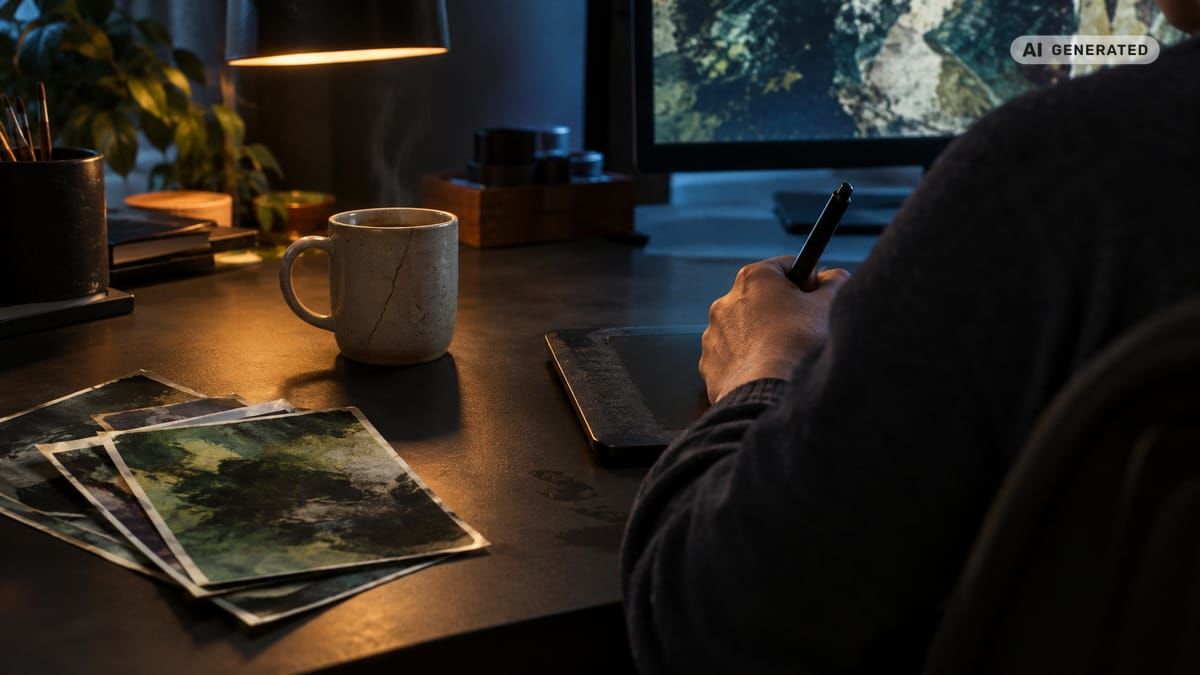
20. Cinematic scene
Give this image a cinematic look using soft directional light, controlled contrast, muted colors and subtle film grain. Preserve the subject, setting and composition. Do not add lens flares, black bars or new objects.
21. High-key studio style
Create a high-key studio finish with an even white background, soft shadows and clear subject separation. Preserve all facial, clothing and product details. Do not erase natural texture or overexpose light areas.
22. Low-key portrait
Create a low-key studio portrait with one soft side light and deep but detailed shadows. Keep identity, expression, pose and clothing unchanged. Do not obscure the eyes or turn the background completely black.
23. Double exposure
Create a controlled double-exposure effect by blending the subject's silhouette with [forest/city/ocean] imagery. Keep the face recognizable and the original profile intact. Do not generate extra facial features, limbs or duplicated outlines.
24. Illustrated treatment
Transform the photo into a [watercolor/editorial illustration] while preserving the subject's recognizable identity, pose, clothing colors and composition. Keep facial features coherent. Do not add text or redesign the scene.
Restoration, product and e-commerce prompts
Vintage restoration
25. Scratch removal
Restore this old photograph by removing scratches, dust and fold marks. Reconstruct only damaged areas using nearby detail. Preserve faces, clothing, historical objects, grain and original composition.
26. Faded contrast recovery
Restore faded tonal range with natural blacks, controlled highlights and clear midtones. Preserve the photograph's period character and fine grain. Do not apply modern HDR styling or artificial sharpening.
27. Careful colorization
Colorize this monochrome photograph with historically plausible, restrained colors. Preserve every person, object and architectural detail. Do not invent patterns, text or accessories that are not visible.
28. Motion-blur improvement
Reduce mild motion blur and improve edge definition conservatively. Preserve facial identity and authentic texture. Do not fabricate eyelashes, teeth, hair strands or text that cannot be recovered reliably.
Product imagery
These templates help you AI-ready brand style guide templates translate directly into prompt keep clauses for on-brand product photography.
29. Marketplace white background
Place the product on a pure white background with clean edges and a soft contact shadow. Preserve exact product geometry, color, material, logo and label text. Do not redesign packaging.
30. Reflection cleanup
Reduce distracting reflections on the [glass/metal/plastic] surface while retaining realistic gloss and material depth. Preserve shape, branding, text and highlights needed to show the material.
31. Dust removal
Remove visible dust, fingerprints and temporary surface marks from the product. Keep texture, finish, seams, printed text and manufacturing details unchanged. Do not make the item look materially different.
32. Lifestyle background
Replace the background with a realistic [kitchen/desk/bathroom] environment suitable for the product. Match perspective and light direction. Keep product dimensions, packaging, label and colors exact.
33. Shadow creation
Add a natural contact shadow beneath the product, matching the existing light direction and surface. Preserve product placement, scale and edges. Do not create a reflection unless requested.
34. Packaging alignment
Correct minor camera perspective so the package appears straight and professionally photographed. Preserve dimensions, label layout, typography and all printed information. Do not regenerate or rewrite text.
35. Color accuracy
Correct white balance and exposure to represent the product's [specified color] accurately. Keep material texture, branding and background unchanged. Do not increase saturation beyond a natural appearance.
36. Product series consistency
Match this product photo to the reference image's background tone, camera height, shadow softness and contrast. Keep the current product's exact design, scale, color and label. Do not copy the reference product.
Specialist prompts for property, food and pets
Real estate photography
Ethical property editing should improve presentation without changing the property itself. These 4 prompts distinguish temporary clutter from permanent features.
37. Correct vertical lines
Correct leaning vertical lines and mild wide-angle distortion while maintaining the room's true dimensions and camera viewpoint. Keep walls, windows, doors, furniture, materials and permanent fixtures unchanged.
38. Balance bright windows
Recover detail in the bright windows and lift interior shadows for a natural, balanced exposure. Preserve the real exterior view, room colors and material textures. Do not replace the sky or window view.
39. Remove temporary clutter
Remove only these temporary items: [list items]. Reconstruct the visible floor or surface naturally. Keep furniture, appliances, room dimensions, materials and permanent defects unchanged.
40. Listing-ready correction
Apply natural exposure correction, neutral white balance and straight verticals. Preserve the property's actual layout, fixtures, materials, views and condition. Do not add furniture, enlarge the room or conceal permanent defects.
Food photography
41. Texture enhancement
Improve visibility of the food's natural texture using subtle midtone contrast and controlled sharpening. Preserve every ingredient, portion size, cooking level and plate arrangement. Do not add garnish.
42. Highlight recovery
Recover detail in bright plate and sauce highlights while maintaining realistic gloss. Preserve ingredient colors, plating and portion accuracy. Do not create an oily or plastic appearance.
43. Natural steam
Add a faint, translucent wisp of steam rising naturally from the hot food. Keep ingredients, quantity, texture, camera angle and background unchanged. Do not obscure the dish.
44. Menu consistency
Match the reference dish's white balance, side-light direction, contrast and background tone. Preserve this dish's exact ingredients, portion size and plating. Do not copy food items from the reference.
Pet photography
45. Background replacement
Replace the background with [setting], matching the original lighting and depth of field. Keep the pet's coat markings, eye color, breed traits, body shape, whiskers and fur texture exactly unchanged.
46. Coat cleanup
Remove only loose dirt and temporary debris from the coat while preserving natural fur direction, color variation and markings. Do not make the coat unnaturally smooth or change the breed appearance.
47. Pet portrait
Convert this image into a clean studio pet portrait with a neutral background and soft frontal light. Preserve eye color, ear shape, muzzle, coat pattern, proportions and expression. Do not humanize the animal.
48. Creative pet style
Apply a restrained [storybook/cinematic] style to the scene while keeping the pet photorealistic. Preserve coat markings, eye color, breed traits, fur texture and body proportions. Do not add clothing unless specified.
How do you edit a batch and reframe images?
Batch consistency requires a fixed reference and a short list of locked visual properties. Do not independently ask the model to make each image "professional," because it may interpret that instruction differently every time. For a deeper look at maintaining visual consistency at scale, see the dedicated brand workflow guide.
Use this 4-step workflow:
- Select one approved image as the visual reference.
- Record its white balance, contrast, background tone, lighting direction and framing.
- Apply the same core prompt to every image, changing only the subject-specific instruction.
- Review the series together, not one image at a time.
Batch and aspect-ratio templates
49. Campaign color matching
Match this image to the approved reference's white balance, contrast, saturation and shadow tone. Keep the current subject's identity, pose and details unchanged. Do not copy objects from the reference.
50. Portrait-series consistency
Apply the reference portrait's camera crop, background tone, lighting direction and skin-color treatment. Preserve each person's unique identity, complexion, hair and clothing. Do not make different subjects look alike.
51. Product-catalog consistency
Match the approved catalog image's camera height, product scale, white background and contact shadow. Keep this item's exact geometry, material, label and color. Do not standardize away real product differences.
52. Instagram 4:5 reframe
Extend the canvas to 4:5 by generating background only. Keep the subject's original size, position, proportions and details unchanged. Do not stretch, crop or regenerate the subject.
53. Vertical 9:16 reframe
Extend this image vertically to 9:16 for a full-screen placement. Continue the existing background, perspective and lighting naturally. Keep the original subject completely unchanged and leave clear space for interface elements.
54. Landscape 16:9 reframe
Extend the canvas horizontally to 16:9, continuing the real environment on both sides. Preserve subject scale, geometry and position. Do not duplicate objects or distort perspective.
55. Marketplace square
Reframe the photo to 1:1 with the complete product visible and evenly spaced margins. Extend only the background where needed. Keep product dimensions, label, color and shadow unchanged.
56. Wide banner
Extend the image into a wide banner while keeping the subject undistorted on the [left/right]. Generate matching background in the open area and preserve perspective, light direction and color. Leave usable negative space for copy without adding text.
What prevents unwanted AI edits?
Negative constraints establish clear boundaries. They are most effective when specific to the subject rather than copied as a long, generic list.
For portraits, use:
Do not change identity, facial structure, body proportions, age, skin tone, expression, eye color or hairline. Do not add beauty filters or plastic skin.
For products, use:
Do not change geometry, materials, dimensions, logo, packaging, color or label text. Do not add accessories or rewrite typography.
For realistic photographs, prohibit extra fingers, duplicated objects, warped lines, false reflections, invented text, excessive sharpening and HDR halos. Keep the list relevant. A constraint about facial identity adds no value to an empty interior photograph.
If an editor repeatedly ignores a complex brief, split the job into 2 edits. Correct exposure first, approve the result, then replace the background. This reduces the number of elements the model must change and protect simultaneously.

How can common editing problems be fixed?
The person no longer looks the same: Strengthen the keep clause and remove style words that imply facial transformation. Name at least 5 protected identity features, such as facial structure, eyes, nose, mouth and hairline.
The result looks overprocessed: Replace "dramatic," "flawless" and "ultra-detailed" with measurable photographic instructions such as natural contrast, recovered highlights and visible skin texture.
Text or logos become unreadable: Tell the model to preserve the exact existing text and restrict editing to the background or lighting. Inspect labels at full resolution before publication.
Objects appear from nowhere: List the permitted change and add, "Do not add new objects." For cleanup, identify each removable object rather than requesting a generally cleaner scene.
A reframed subject is stretched: State the target ratio, such as 9:16, and require background-only extension. Explicitly lock subject size, proportions and position.
A series looks inconsistent: Use 1 approved reference image, repeat the same core prompt and change only the necessary subject variable. Review all outputs side by side before export.
AvocAIdo tip
Instead of manually engineering all 5 prompt components, creative teams can describe the intended image in plain language. AvocAIdo's ArtDirector AI converts plain-language instructions into professional prompts and is included across its AvocAIdo pricing plans. The platform also runs Grok Imagine, Seedream 5 Lite, NanoBanana 2 and GPT Image 2 in parallel, producing 4 interpretations for review. Combine that workflow with Brand Style Intelligence when a campaign needs a shared palette, lighting treatment and mood across different subjects. Explore the AvocAIdo workflow.
FAQ
How long should a photo-editing instruction be?
Start with 2 to 4 concise sentences covering the action, target, desired result, protected details and prohibited changes. Length matters less than specificity. If the instruction contains several unrelated edits, divide it into 2 separate operations and approve the first result before starting the second.
Can a prompt keep a person's face unchanged?
A keep clause can reduce unwanted identity changes, although results still need visual review. Name at least 5 protected details, such as facial structure, eye color, nose, mouth and hairline, then prohibit reshaping and beautification. Avoid vague requests such as "make the person more attractive."
Why does AI change parts I did not mention?
Models may reinterpret unspecified regions while trying to satisfy a broad visual instruction. Add 1 explicit keep clause listing the protected subject, composition, clothing and background. For a difficult edit, limit each pass to 1 major action, such as exposure correction or background replacement.
What file formats can be used for references?
Accepted formats depend on the chosen editor, so check its upload controls before beginning. AvocAIdo supports 3 common reference formats: JPG, PNG and WebP. Use the highest-quality source available because compressed edges and unreadable text are harder to preserve.
What ratios should I request for social content?
Use 4:5 for a portrait-oriented feed asset, 9:16 for vertical full-screen content and 16:9 for landscape placements. When changing the ratio, instruct the model to extend only the background. Lock the original subject's size, proportions and position to prevent stretching or unnecessary regeneration.
Can one prompt edit a complete campaign?
One reusable core prompt can establish color, contrast, lighting and framing, but each image still needs review. Choose 1 approved reference, lock 4 visual properties and alter only the subject-specific instruction. Compare the entire series side by side so gradual inconsistencies do not pass unnoticed.
How many results does AvocAIdo produce from one brief?
AvocAIdo runs 4 current models in parallel: Grok Imagine, Seedream 5 Lite, NanoBanana 2 and GPT Image 2. This gives the user 4 interpretations to compare under the same brief rather than requiring manual selection of one model before generation. See the full list of AI models for image generation for details on each engine's strengths.
Next step
Choose 3 templates from this guide and adapt them to one current campaign brief. To compare multiple interpretations without manually rewriting the instruction for different models, start with 4,000 free AvocAIdo credits, with no credit card required. For tool recommendations beyond AvocAIdo, browse the best AI photo editing apps for professionals.
Zdroje
Ready to create your own images?
Bring a brief or a reference image. Explore the possibilities with four AI models.
Free credits to start · No credit card