AI Photo Editing Prompt: Formula and Examples
Learn how to write precise AI photo editing prompts that preserve faces, composition and brand details, with templates and troubleshooting tips.
Turn this inspiration into your own images.
Bring a brief or a reference image. Explore the possibilities with four AI models.
Free credits to start · No credit card

An AI photo editing prompt is a written instruction that tells an image editor what to change, what result to create and what must remain untouched. A precise prompt helps protect identity, composition and important details while directing lighting, color, backgrounds or style. This guide provides a reusable formula, practical templates and fixes for common editing failures. If you are new to the process, start with our step-by-step guide to editing photos with AI.
Methodology: This guide is based on current prompt guidance from image-editing publications, creative workflow resources and AvocAIdo product documentation available on September 7, 2026.
AI photo editing prompts in short
- A reliable instruction contains 5 elements: preservation constraints, action, target, desired result and exclusions.
- Strong prompts describe both halves of the task, what to change and what to keep unchanged.
- Change only 1 major variable per iteration, such as lighting, background or pose, to retain control.
- Use 1 to 2 primary subjects per image rather than combining several competing edits.
- For social content, specify a final ratio such as 1:1, 16:9 or 9:16 before generating the edit.
- A local edit should identify the exact region, its visible boundaries and nearby details that must be protected.
- Inspect faces, hands, text, logos, hair edges, reflections and contact shadows after every generated result.
Checklist for writing an effective instruction
- Identify the single most important change required.
- Name the exact subject, object or image region to edit.
- State which facial, product and compositional details must remain unchanged.
- Describe the desired lighting, color, mood or finish in concrete terms.
- Specify how a new object or background should interact with the existing scene.
- Add exclusions for unwanted reshaping, smoothing or extra elements.
- Request the required aspect ratio and output orientation.
- Run separate prompts for unrelated edits.
- Compare the result against the source image before continuing.
- Revise only one instruction at a time when troubleshooting.
Made with AvocAIdo
Your product. Your style. Four possibilities.
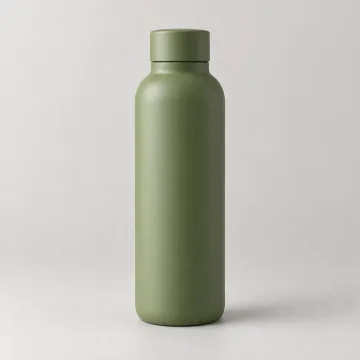
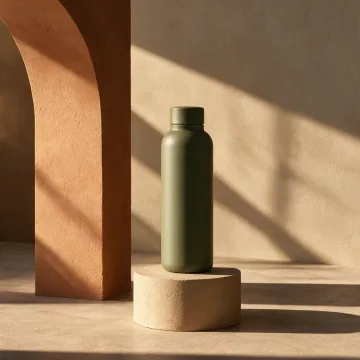
Turn a product photo and a style reference into studio-style images. Compare AI models in one place.

Saved examples · 4 AI models



Free credits to start · No credit card
What is an AI photo editing prompt?
An AI photo editing prompt is an instruction applied to an existing image. Unlike a text-to-image prompt, it begins with source material that already contains a subject, composition, lighting setup and visual hierarchy. To understand how AI photo editing works under the hood, it helps to know that the model interprets both the pixels and the text simultaneously.
The instruction therefore has 2 responsibilities. It must define the intended change and protect everything that should survive the edit.
"Create a cinematic portrait of a woman" is primarily a generation prompt. "Add soft cinematic side lighting to this portrait while preserving the woman's face, pose, clothing and background composition" is an editing prompt.
This distinction matters because editing systems may reinterpret more of the source image than expected. Even when a user selects a specific region, the generated change can affect nearby areas. A textual preserve clause remains useful alongside a selection or mask.
A strong prompt should answer these questions:
- What is the source image?
- What must be changed?
- Where should the change occur?
- What should the result look like?
- What must stay exactly as it is?
- What must not be added or altered?
- What format should the final image use?
Current guidance converges on this structure. Picsart describes 4 components: action, editing target, desired look and what to keep (zdroj: Picsart). Aireiter adds a fifth component, a negative constraint that explicitly prevents unwanted changes (zdroj: Aireiter).
What is the anatomy of a precise photo edit instruction?
The most dependable structure is constraint-first. Lock the non-negotiable elements before describing the creative change.
Use this formula:
Preserve [identity, proportions, composition, text, logos and protected details]. Change only [exact target or region]. Apply [specific action and desired appearance]. Integrate the edit using [lighting, perspective, texture and shadow requirements]. Do not [unwanted changes]. Deliver in [ratio or orientation].
This formula combines 6 functional layers.
1. Preservation constraints
Begin with the parts that cannot change. For a portrait, this may include facial identity, skin tone, body proportions, hairstyle and expression.
For a product image, preserve the item's shape, packaging, label text, logo placement and color. For a poster, protect all existing typography, spacing and visual hierarchy.
Example:
Preserve the woman's facial identity, natural body proportions, hairstyle, expression and green dress.
Constraints should be concrete. "Keep it realistic" is not enough because realism does not specify whether the model may reshape a face, smooth skin or change clothing.
2. Action
Use a direct verb that identifies the job:
- Remove
- Replace
- Brighten
- Darken
- Recolor
- Retouch
- Extend
- Reframe
- Sharpen
- Match
One action makes the request easier to interpret. If the image needs 3 unrelated changes, run 3 editing rounds.
3. Exact target
Name the object or region precisely. "Change the background" is less useful than "replace only the gray studio wall behind the product."
For a local adjustment, describe recognizable boundaries:
Change only the sky above the mountain ridge. Preserve the ridge line, tree branches, hair edges and lake reflections.
This acts like a plain-language mask. It tells the model where the edit begins and which adjacent details define its boundary.
4. Desired result
Describe a visible outcome rather than a subjective reaction. Replace "make it pop" with instructions involving exposure, contrast, color temperature, saturation or light direction.
For example:
Brighten the face slightly, use neutral skin tones, retain highlight detail and keep natural shadow depth beneath the cheekbones.
5. Integration rules
A generated object must obey the physical logic of the existing image. Specify matching perspective, light direction, scale, depth of field, grain and contact shadows.
Without these directions, a replaced background may look disconnected from the subject. The subject could have soft light from the left while the generated scene implies hard sunlight from the right.
6. Exclusions and output
Finish with explicit limits and the intended format:
Do not reshape the face, smooth away skin texture, add accessories or modify the clothing. Keep the existing 4:5 portrait composition.
Negative instructions are especially important when the desired edit is subtle.
How do you write an AI photo editing prompt step by step?
Start with the image's fixed elements, then narrow the edit to one target. This method reduces ambiguity and makes failed results easier to diagnose.
- Describe the source briefly. Identify the main subject, setting and current composition in 1 sentence.
- Lock important details. List identity, proportions, products, labels, text or background elements that must remain unchanged.
- Choose 1 primary edit. Request a lighting correction, background change, object removal or style adjustment, not all of them together.
- Name the precise target. Identify an object or bounded region such as "the sky above the buildings."
- Describe the desired appearance. Specify color, intensity, direction, material, texture or mood.
- Explain physical integration. Match perspective, shadows, reflections, focus and grain to the source.
- Add negative constraints. Prevent identity changes, beautification, unwanted objects or typography distortion.
- Define the output. State the final ratio, orientation and intended use.
- Review and revise. Compare the edit against the source and adjust only 1 variable in the next round.
Meta recommends changing only 1 aspect per iteration, such as lighting, pose or color palette (zdroj: Meta AI). Smart AI Edits similarly recommends limiting an image to 1 or 2 main subjects instead of overwhelming the model with competing priorities (zdroj: Smart AI Edits).
Here is the complete process in one example:
This is a waist-up studio portrait of a woman against a neutral gray wall. Preserve her facial identity, expression, natural skin texture, body proportions, hairstyle and black jacket. Change only the lighting on her face to soft window light coming from camera left, with neutral white balance and controlled highlights. Maintain the original pose, framing and background. Do not smooth the skin, reshape facial features, change eye color or add accessories. Keep the 4:5 portrait composition.
How should you preserve identity and composition?
Identity preservation requires more than writing "keep the same person." List the visual characteristics that make the subject identifiable, then prohibit common forms of reinterpretation. The same principle applies when you want to make AI-edited photos look professional and on-brand.
For portraits, consider preserving:
- Facial structure and feature spacing
- Eye shape and eye color
- Nose and mouth shape
- Skin tone and natural texture
- Hairstyle and hairline
- Expression and gaze direction
- Body proportions and pose
- Clothing and accessories
Avoid unsupported absolutes such as "100% identical." A precise list of visible constraints gives the editor more actionable information.
Use this identity-preserving portrait template:
Preserve the subject's facial identity, feature proportions, eye color, skin tone, hairline, hairstyle, expression and pose. Change only [target]. Do not beautify, reshape, age, de-age or replace facial features. Keep natural pores, fine lines and realistic skin texture.
Composition needs its own preserve clause. Protect camera angle, crop, subject position, negative space and depth relationships:
Maintain the original camera angle, crop, horizon position, subject scale and spacing. Do not move the subject or introduce new foreground elements.
The same principle applies to commercial assets. If a product has printed text, include each critical element in the protected list:
Preserve the package dimensions, logo, label wording, typography, cap shape and exact product color. Change only the surface beneath the product.
Generated systems may still produce errors. After each edit, zoom in and compare facial landmarks, logos and typography with the uploaded source.
How do you prompt lighting, exposure and color edits?
Lighting prompts work best when written in photographer or retoucher language. State the light's direction, quality, intensity and effect on the subject.
A complete lighting request can include 4 controls:
- Direction: camera left, camera right, overhead, frontal or backlit.
- Quality: soft, diffused, hard, broad or focused.
- Color: warm, neutral, cool or a specific color cast to remove.
- Shadow behavior: soft-edged, deep, lifted or unchanged.
Weak instruction:
Add cinematic lighting.
Improved instruction:
Add soft, directional key light from camera left with gentle shadow falloff on the right side of the face. Keep skin tones neutral and preserve the existing background exposure.
"Cinematic" can remain in the prompt, but it should not replace measurable visual direction. Explain what cinematic means in this particular image: controlled highlights, directional contrast, restrained saturation or a cooler background.
For exposure corrections, name the protected tonal regions:
Increase overall exposure by 0.3 stop equivalent while retaining highlight detail in the white shirt and natural shadow depth in the hair.
Stackfindover uses the same 0.3-stop language in its professional retouching examples (zdroj: Stackfindover). This is more precise than "make the photo brighter."
For white balance and color:
Neutralize the yellow color cast in the white wall and skin highlights. Preserve the green dress color and keep overall saturation unchanged.
Do not combine a white balance correction, a new background and facial retouching in one request. Complete the color adjustment first, review it, then open a separate round for the next edit.
How do style, mood and reference images work together?
Style describes recurring visual characteristics. Mood describes the emotional impression produced by those characteristics. A useful prompt translates both into observable choices.
Instead of:
Make it dark and moody.
Write:
Apply low-key studio lighting, deep neutral shadows, restrained saturation and a narrow pool of soft light around the product. Preserve label readability and accurate product color.
Meta identifies 7 useful image-prompt ingredients: subject, action, style, background, color, framing and mood. These categories provide a practical review checklist, but an edit prompt must also include preservation constraints.
Reference images can communicate a look that is difficult to describe in text. They may demonstrate:
- Color palette
- Contrast level
- Light direction
- Background treatment
- Composition
- Texture and grain
- Visual mood
State what should be copied from a reference and what should not:
Match the reference image's warm side lighting, muted brown palette and shallow depth of field. Do not copy its person, clothing, pose or background objects. Preserve the identity and composition of the source portrait.
This prevents the editor from treating the entire reference as a replacement scene.
Reference images are particularly useful for a multi-image campaign. Define 3 to 5 stable style attributes and repeat them across each instruction. A brand might standardize neutral white balance, soft top-left light, low saturation and generous negative space while varying the subject. Encoding these attributes into AI-ready brand style guide templates makes the process repeatable.
Which prompt templates work for common photo types?
The following templates are starting points. Replace every bracketed field with a specific description and remove irrelevant instructions.
Portrait retouching
Preserve the person's facial identity, skin tone, facial proportions, expression, hairstyle, pose and clothing. Retouch only [specific area] by [desired change]. Keep natural pores, fine lines and realistic tonal variation. Do not reshape facial features, smooth all skin texture, change eye color or add makeup. Maintain the original [ratio] composition.
Professional profile portrait
Preserve identity, expression, hair, clothing and body proportions. Replace only the background with a clean, softly lit neutral studio wall. Match the existing light direction and depth of field, and retain natural edge detail around the hair. Do not alter the face or add accessories. Export as a 1:1 composition.
Product photography
Preserve the product's exact shape, dimensions, label text, logo, typography and color. Replace only [surface or background] with [material or setting]. Match the source camera angle, perspective and focus. Add realistic contact shadows and reflections consistent with light from [direction]. Do not redesign the packaging or generate additional objects.
Landscape photo
Preserve the terrain, horizon, buildings, vegetation and original camera position. Change only the sky above [clear boundary] to [desired weather or time]. Match the sky's light direction and color with the land. Preserve fine edges around trees and architecture, and maintain existing reflections in [water or glass].
Food photography
Preserve the dish, plating arrangement, portion size, ingredients and table composition. Adjust only the lighting to soft window light from camera left, with warm but natural color and controlled highlights. Retain realistic food texture and moisture. Do not add garnish, utensils or ingredients.
Social media image
Preserve the subject, brand colors, logo and all readable text. Reframe the image for 9:16 while keeping the main subject within the central safe area. Extend only the upper and lower background using matching texture, lighting and perspective. Do not stretch the subject or invent new text.
Event poster
Preserve every existing word, font treatment, logo, date and information block. Change only the background atmosphere to [description]. Maintain high contrast behind the text and the original visual hierarchy. Do not rewrite, duplicate or reposition typography. Keep the [specified ratio] layout.
A generated poster must receive an additional manual text check. Compare each character, date and logo against the original asset before publishing.
How do you request local edits and background changes?
A local prompt identifies an editable region through objects and visible boundaries. Think of it as a verbal selection containing 3 elements: region, edge and protected surroundings.
For example:
Replace only the sky above the city skyline. Use a pale blue early-evening sky with thin clouds. Preserve building edges, antennas, the woman's hair outline, window reflections and all foreground lighting.
The skyline is the boundary. Hair, antennas and reflections are protected details that a broad "replace sky" instruction could damage.
For object removal:
Remove only the red sign behind the subject's left shoulder. Reconstruct the brick wall using the surrounding pattern, mortar spacing, lighting and focus. Preserve the shoulder outline, hair strands and nearby wall shadows.
For background replacement:
Replace only the gray background behind the bottle with dark green stone. Preserve the bottle, cap, label, logo and transparent edges. Match the existing camera angle and light from upper left. Add a subtle contact shadow directly beneath the bottle without changing its position.
When using a selection-based editor, create a selection that includes enough surrounding context for reconstruction. Still repeat the protected details in the prompt because selection boundaries may not function as perfect fences.
Background prompts should address 5 physical relationships:
- Light direction
- Perspective
- Subject scale
- Contact shadows
- Reflections or color spill
A visually attractive background can still fail if its shadows contradict the source. Check where the subject touches the floor, table or wall and whether reflected surfaces contain the old environment.
What do weak and improved prompts look like?
The easiest way to improve a prompt is to replace vague adjectives with explicit actions and constraints.
Example 1: General enhancement
Weak:
Make this photo better.
Improved:
Preserve the subject, crop and background. Increase facial exposure slightly, neutralize the yellow cast and add moderate detail to the eyes and hair. Keep natural skin texture and existing shadow depth. Do not reshape the face, add makeup or change clothing.
Example 2: Background replacement
Weak:
Put her in a beautiful studio.
Improved:
Preserve the woman's identity, pose, proportions, red dress and hair edges. Replace only the outdoor background with a neutral photography studio using a light gray seamless wall. Match the soft light from camera right and retain realistic floor contact shadows. Do not alter the subject or add furniture.
Example 3: Product edit
Weak:
Create a high-quality luxury product photo.
Improved:
Preserve the bottle shape, black cap, label wording, logo and amber glass color. Replace only the white surface with dark polished stone and add a subtle warm reflection beneath the bottle. Match the existing front-left light and camera perspective. Do not redesign the packaging or add decorative objects.
Example 4: Cinematic portrait
Weak:
Make this portrait cinematic.
Improved:
Preserve facial identity, expression, hairstyle and composition. Add low-key side lighting from camera left, controlled highlight rolloff, cool neutral shadows and restrained saturation. Keep realistic skin texture and the existing depth of field. Do not change the face, background objects or clothing.
Each improved version separates protected content from the requested edit. It also gives the editor an inspection standard, such as accurate label wording or unchanged hair edges.
How can you fix common AI editing mistakes?
Prompt failures usually reveal a missing constraint, an overloaded instruction or an integration problem. Diagnose the visible defect before rewriting the entire prompt. Knowing the must-have features in AI photo editing tools can also help you choose an editor that supports the prompt controls you need.
| Visible problem | Likely prompt gap | Instruction to add |
|---|---|---|
| Altered face | Identity was not protected | "Preserve facial identity, feature proportions, expression, eye color and skin tone." |
| Plastic skin | Retouching request was too broad | "Keep natural pores, fine lines and tonal variation. No global smoothing." |
| Warped hands | Anatomy was regenerated unnecessarily | "Preserve the original hands, finger count, hand position and grip." |
| Unreadable text | Typography was not locked | "Preserve every existing character, font, spacing and logo exactly." |
| Hair halo | Background boundary was vague | "Preserve individual hair strands and remove color spill around the hair edge." |
| Floating product | Physical integration was omitted | "Add a realistic contact shadow directly beneath the product, matching the light direction." |
| Inconsistent shadows | New scene conflicts with source lighting | "Match all generated shadows to the existing light from camera left." |
| Unwanted objects | No negative constraint was supplied | "Do not add people, props, accessories, text or decorative elements." |
Trypencil identifies extra fingers, twisted limbs, backward joints and inconsistent facial features as recurring generative-image errors (zdroj: Trypencil). Prevention begins by telling the editor not to regenerate areas that do not require changes.
If a defect persists, reduce the editable area. Protect the rest of the image and run a dedicated repair prompt for only that region. Do not add new style, lighting or background requests during the repair.
How should prompts change between different editors?
Conversational and selection-based editors interpret instructions differently. The underlying preservation principles remain the same, but the user must distribute information between the visual selection and the text field. Different AI models for image generation also respond to prompts in distinct ways, so testing across models is valuable.
Conversational editors
In conversational systems such as ChatGPT or Gemini, the text carries most of the editing logic. Describe the source, preservation constraints, target region, desired result and exclusions in complete instructions.
A suitable conversational request is:
Edit the uploaded portrait. Preserve the woman's face, expression, pose, hairstyle and green jacket. Replace only the wall behind her with a softly lit warm-gray studio background. Match the existing light from the left and preserve hair edges. Do not alter the subject.
Later messages should reference the previous result precisely:
Keep the latest version unchanged except for the background brightness. Reduce only the background exposure while preserving the subject and all edge detail.
This is better than "try again" because it identifies the one variable being revised.
Selection-based editors
In tools such as Photoshop Generative Fill, the selection already communicates location. The prompt can focus on what should fill or modify that area.
For example, after selecting a wall:
Warm-gray studio wall, soft light from upper left, matching existing perspective and depth of field.
Selection quality matters. PhotoshopCAFE's guidance shows that the shape and context of a selection influence the generated result (zdroj: PhotoshopCAFE). Hair, clothing edges and adjacent shadows should not be included casually.
Even with a selection, add constraints when the surrounding area is vulnerable:
Replace the selected sky with thin evening clouds. Preserve the skyline, antennas and reflected sky color in the windows.
Generation-oriented systems
Some image systems use an uploaded picture primarily as inspiration rather than as an editable source. In that case, describe the complete desired final image rather than assuming the model will preserve every source detail.
Before beginning, determine whether the tool performs direct edits, selected-area generation or reference-based recreation. That single distinction changes how much of the final scene the prompt must describe.
What privacy and consent checks should you complete?
Before uploading a photo, confirm that you have permission to use it and that the selected tool is appropriate for the material. This is particularly important for family photographs, client portraits, confidential campaign assets and images of children.
Complete these checks:
- Obtain consent from identifiable people when required.
- Confirm that the photographer or organization permits the intended edit.
- Remove IDs, addresses, account details and confidential documents from the frame.
- Review the tool's current terms, retention information and content-use provisions.
- Avoid uploading an entire client library when only 1 cropped reference is needed.
- Keep an unedited original and document which generated version was approved.
- Verify licensing and publication rights before commercial use.
For brand work, establish an internal upload policy covering authorized users, approved asset types and the handling of unreleased products. Terms and platform behavior can change, so review the applicable documentation for each project rather than relying on an earlier check.
AvocAIdo tip
AvocAIdo's ArtDirector AI converts plain-language descriptions into professional prompts, reducing the need to write model-specific prompt syntax manually. Brand Style Intelligence analyzes reference photos for characteristics including color, lighting and mood, then applies the selected style during generation.
Each request can run across 4 current models in parallel: Grok Imagine, Seedream 5 Lite, NanoBanana 2 and GPT Image 2. This lets creative teams review 4 interpretations while retaining control over the final selection. Explore the platform workflow or review the AvocAIdo pricing plans.
AI photo editing prompt FAQ
How long should an editing instruction be?
Use enough detail to cover 5 core elements: what to preserve, the action, exact target, desired result and exclusions. A focused paragraph is normally more controllable than a long list of competing creative ideas. If the request contains 2 unrelated edits, split them into separate rounds.
What is the best prompt for improving a portrait?
Start by protecting identity, expression, skin tone, hairstyle, body proportions and clothing. Then request only 1 primary adjustment, such as neutral white balance or softer facial light. Finish by excluding facial reshaping, global skin smoothing and unwanted accessories.
Can AI remove a background without changing the subject?
It can replace a background, but the prompt should explicitly protect the subject, hair edges, transparent details and pose. Add at least 3 integration details: matching light direction, perspective and contact shadows. Inspect facial features and boundaries against the source before approving the result.
Should I use negative prompts for photo editing?
Yes, negative instructions define what the editor must not alter. Include 2 to 5 relevant exclusions, such as no facial reshaping, no new objects and no typography changes. Avoid enormous generic negative lists because they can distract from the main edit.
Why does the editor keep changing the person's face?
The editable scope may be too broad, or the instruction may not define identity-preserving details. Add a clause protecting facial structure, eye color, skin tone, hairline, expression and feature proportions. Then edit only 1 bounded region that does not require the face to be regenerated.
How do I keep text and logos readable?
State that every existing character, font treatment, spacing decision, logo and product color must remain unchanged. Request only the surrounding edit, such as replacing the surface or background. After generation, compare the output character by character with the original because even 1 altered symbol can invalidate a commercial asset.
Which aspect ratio should I request for social content?
Choose the ratio before editing so the system can extend or crop the correct regions. Common options include 1:1 for square posts, 9:16 for vertical content and 16:9 for horizontal banners. Tell the editor to preserve subject proportions and extend only the background when reframing.
Next step
Write one constraint-first instruction using the formula in this guide, then test how 4 models interpret it in parallel. AvocAIdo offers 2,000 free credits without requiring a credit card. You can create an account and begin a generation. For a broader look at AI photo editing for visual consistency at scale, see how teams apply reusable formulas across entire content libraries. You can also browse the best AI photo editing apps ranked by features and price to find the right tool for your workflow.
Zdroje
Ready to create your own images?
Bring a brief or a reference image. Explore the possibilities with four AI models.
Free credits to start · No credit card