Editing Photo With AI Free: 2026 Limits
Learn what free AI photo editors can do in 2026, including limits, watermarks, image quality, privacy and commercial-use rights.
Turn this inspiration into your own images.
Bring a brief or a reference image. Explore the possibilities with four AI models.
Free credits to start · No credit card

Editing photos with AI for free is possible in 2026. Free tools can remove objects, replace backgrounds, retouch portraits, generate missing areas and enhance image quality. However, free plans commonly restrict credits, resolution, watermarks or commercial use. This guide, based on published 2026 comparisons and provider policies, explains what works and where paywalls begin. If you are new to the topic, start with this step-by-step beginner's guide to editing photos with AI.
Free AI photo editing in short
- Free AI editors can handle background removal, object cleanup, portrait retouching, enhancement and generative fill. For a dedicated roundup, see the best free AI photo editor guide.
- Many free services restrict exports to approximately 600 to 1,024 pixels, which may be unsuitable for print or marketplace listings.
- Canva Free allows 50 AI image generations per month, while Adobe Firefly provides approximately 25.
- Snapseed offers unlimited mobile editing without ads, watermarks or in-app purchases.
- Fotor provides 3 free AI edits per day, but AI-generated content carries a watermark.
- A free commercial licence is not automatic: Photoroom Free excludes commercial use.
- Privacy policies vary from less than 24 hours of storage to 30 days, with some free services using prompts or outputs for training.
- A separate list covers the best free online AI photo editing browser tools in 2026.
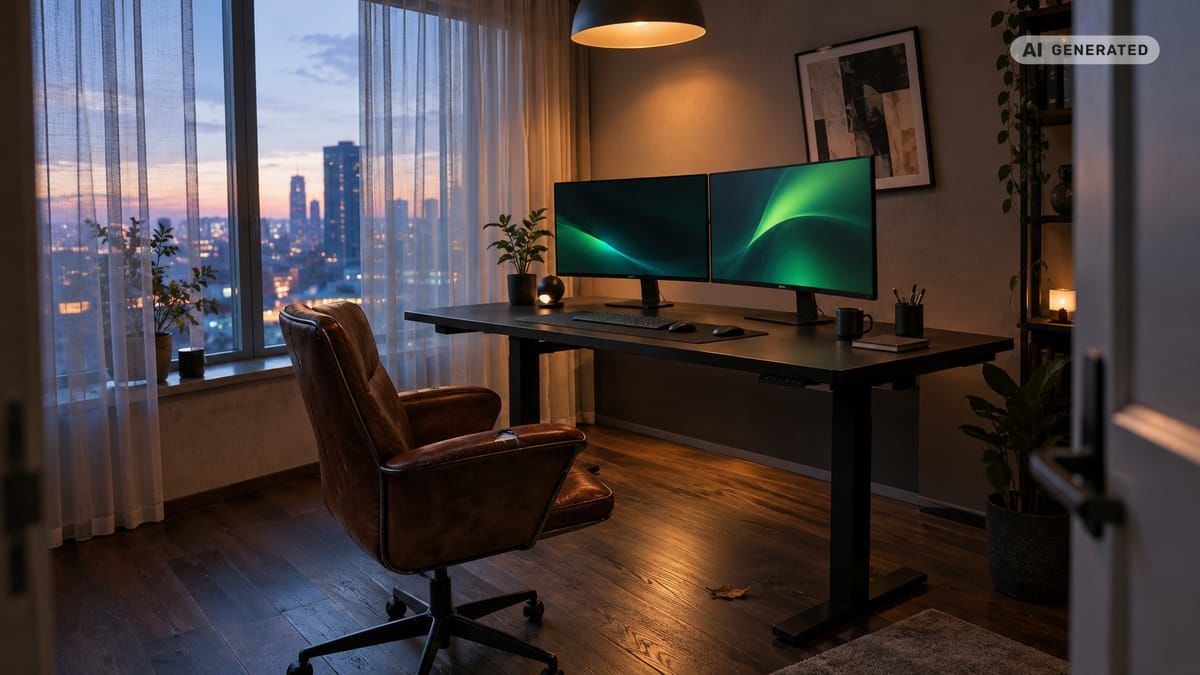
Checklist for choosing a free AI editor
- Define the exact edit before uploading the photo.
- Check whether the tool edits existing photos or only generates new images.
- Confirm the number of free credits or daily edits.
- Inspect the maximum download resolution before starting.
- Check whether free exports contain visible branding.
- Read the commercial-use terms for client or product work.
- Review image retention and model-training policies.
- Export one test image and inspect faces, text and product edges.
- Preserve the original file, metadata and colour profile separately.
- Compare the paid plan with the cost of combining several free tools.
Made with AvocAIdo
Your product. Your style. Four possibilities.
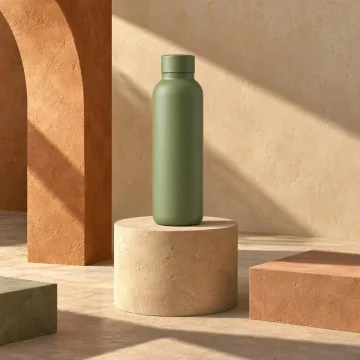
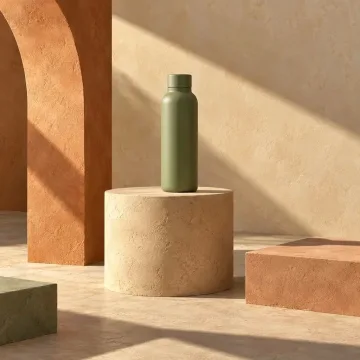
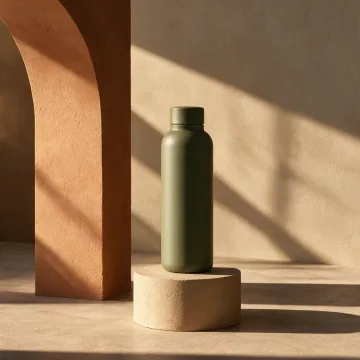
Turn a product photo and a style reference into studio-style images. Compare AI models in one place.
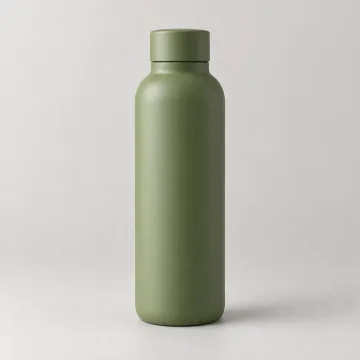
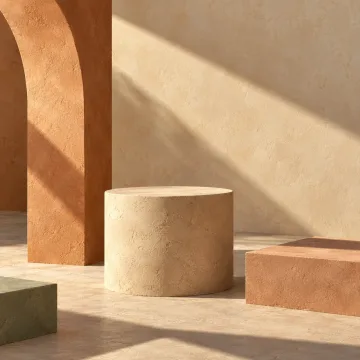
Saved examples · 4 AI models

Free credits to start · No credit card
What can free AI photo editing actually do in 2026?
Free AI editing is effective when the requested change is visually clear and limited in scope. Common uses include removing a background, erasing a distracting object, improving exposure, smoothing minor portrait imperfections and generating additional space around a photo.
AI retouching can reduce blemishes, brighten faces and adjust colour automatically. Object removal works best when the surrounding area has a predictable pattern, such as sky, grass or a plain wall. Complicated reflections, overlapping fingers, jewellery and branded packaging require closer inspection.
Generative fill goes further by creating new pixels. It can replace clothing colours, add props, expand a landscape or reconstruct an area after an object is removed. Style transfer can reinterpret a photo using a cinematic, editorial or illustrated look, although identity and product accuracy may change.
Enhancement tools can sharpen soft images, reduce visible noise and upscale small files. They cannot recover every authentic detail that was absent from the source. An AI upscaler may generate plausible texture rather than restore the exact original texture.
Which free AI photo editor fits each use case?
The best free option depends on whether the priority is traditional editing, prompt-based generation, browser access or mobile convenience. Some free AI photo editors require no download or sign-up, making them the most frictionless starting point.
| Use case | Suitable free option | Published free allowance | Main limitation |
|---|---|---|---|
| Mobile adjustments | Snapseed | Unlimited editing | No full generative editing workflow |
| Text-to-image generation | Raphael AI basic mode | Unlimited generations | Generator rather than complete photo editor |
| Social graphics | Canva Free | 50 AI generations per month | Some AI or Pro elements may be restricted |
| Generative experiments | Adobe Firefly Free | Approximately 25 images per month | Credit-based allowance |
| Browser editing | Pixlr Free | 3 saves per day | Some AI outputs may be restricted or watermarked |
| AI effects | Fotor Free | 3 AI edits per day | Watermark on AI-generated content |
Data valid as of 2026-09-07.
Snapseed is appropriate for exposure, colour, cropping and local mobile adjustments. Raphael AI is useful when the goal is to generate an image from text rather than modify a source photo. Canva suits creators who want editing, templates and social layouts in one interface.
Pixlr can support quick browser-based work, but its published limit of 3 saves per day makes experimentation less flexible. Fotor provides AI effects and edits, although its watermark affects presentation. Published free-plan conditions can change, so verify the download screen and terms before committing a full batch.
How do you edit a photo with AI for free?
A controlled workflow reduces wasted credits and makes it easier to identify unwanted AI changes.
- Keep the original file. Duplicate the highest-resolution version before uploading it.
- Choose one task. Start with background removal, object cleanup, enhancement or expansion rather than combining several transformations.
- Upload the supported format. JPG and PNG are widely accepted; verify WebP support before relying on it.
- Select the target area. Use a precise brush or mask and avoid covering details that should remain unchanged.
- Describe the edit. State what should change and what must remain fixed.
- Generate multiple versions. Use 2 or 3 attempts when the allowance permits.
- Inspect the result closely. Review faces, fingers, text, reflections, jewellery, logos and transparent edges.
- Download at maximum quality. Select the largest available resolution and preserve transparency when required.
- Compare with the original. Confirm that colour, proportions and recognisable features remain accurate.
For social posts, a 1:1 or 9:16 composition may be more useful than the source ratio. For product photos, keep the product shape, label and colour unchanged unless alteration is intentional and properly disclosed.
How should prompts describe precise photo edits?
A good editing prompt identifies the target, requested change, surrounding context and protected elements. "Improve this photo" leaves too much room for interpretation.
Use a structure such as:
Remove the coffee cup from the left side of the table. Reconstruct the light oak surface with matching grain, perspective and afternoon lighting. Keep the laptop, hands and background unchanged.
For expansion, specify direction and composition:
Expand the image upward to create more neutral wall space. Continue the existing shadows and warm indoor lighting. Do not alter the person's face, clothing or pose.
Avoid requesting 5 unrelated changes in one prompt. First remove the unwanted object, then correct the generated area, and only then adjust colour or format. This staged process makes errors easier to isolate and reduces the chance that a tool changes the entire photo.
What limits make a free editor unsuitable?
The most visible limits are credit caps and watermarks, but resolution and usage rights can be more consequential. Published comparisons report typical free export limits of approximately 600 to 1,024 pixels. Another 2026 comparison found free product-photo outputs ranging from 500 to 1,200 pixels.
That may be adequate for small social graphics but restrictive for cropping, print and e-commerce. One marketplace-focused comparison reports that Amazon generally requires 2,000 pixels on the longest edge, above the output from many free tools. For tips on getting professional results from free AI photo editing, see the dedicated guide.
A "no watermark" claim also requires context. Pixlr basic outputs may be watermark-free, while some AI outputs remain restricted. Canva standard edits can be exported without a watermark, but Pro-only assets or particular AI features may introduce limitations. Always perform 1 final test export before processing a complete campaign. A separate article covers free AI photo editors with no restrictions.
Account requirements represent another paywall trigger. Some tools allow editing without registration but require an account to download, generate more versions or access full resolution. Others reset allowances daily or monthly, which can work for occasional personal edits but interrupt production schedules.
Online or offline AI photo editors: which is better?
Online editors are convenient because they run in a browser and require little setup. They are suitable for occasional background removal, generative fill and social content, but uploaded files may be stored or processed on external servers.
Offline tools keep more of the workflow on the user's device and avoid recurring SaaS generation caps. GIMP and local plugins can provide a capable free stack, although setup and model management demand more technical effort than a web editor.
Privacy should be evaluated policy by policy. BackgroundErase states that uploaded data is retained for less than 24 hours by default and requires explicit opt-in for model improvement (zdroj: BackgroundErase). Photolaria says guest uploads are deleted after 7 days and are not used to train its models (zdroj: Photolaria). Image Editor AI specifies exactly 30 days of retention and states that images and prompts are not used for training (zdroj: Image Editor AI).
Do not upload confidential client photography, unreleased products or identity documents until the retention, deletion and training terms are acceptable.
How do you preserve quality, metadata and transparency?
Start with the largest original available. Repeatedly downloading, recompressing and re-uploading a JPEG can reduce quality, even when the AI edit initially looks sharp.
Check 4 technical properties after export:
- Pixel dimensions
- File format and compression
- Alpha transparency
- EXIF and colour-profile retention
Many browser tools do not clearly explain whether EXIF metadata or embedded colour profiles survive an AI edit. Preserve the untouched source and copy necessary metadata only after confirming the final image.
For transparent product cut-outs, download PNG rather than JPEG. For web delivery, WebP can reduce file size, but the exported file should still be checked in the target website, social network or marketplace.
When does paying for AI editing make sense?
A paid platform becomes practical when free limits create more work than they save. Common signals include processing repeated campaigns, needing consistent visual direction, delivering commercial client work or generating enough alternatives to compare styles reliably. The AI image generation pricing guide provides detailed cost context for readers who hit free-tier limits.
Commercial rights deserve particular attention. Photoroom's Free plan excludes commercial use, and published terms for several other free services restrict outputs to personal, evaluation or non-commercial purposes. A creator should not assume that a free download can be used in a store listing, paid advertisement or client deliverable. Review AvocAIdo's pricing plans to compare a paid professional option against the free tools discussed above.
Payment may also be justified when the workflow requires full-resolution output, predictable credits, no visible branding and clearer licensing. For a brand team, repeatability is another dividing line. A single successful free edit is useful, but reproducing the same lighting, palette and mood across 20 product or campaign images is a different production problem.
AvocAIdo tip
AvocAIdo is designed for creative professionals and brand teams that need more than isolated free edits. It generates each request across 4 models in parallel: Grok Imagine, Seedream 5 Lite, NanoBanana 2 and GPT Image 2. Reference photos can be used to establish lighting, colour, mood and visual style, while ArtDirector AI converts plain-language direction into model-optimised prompts. All plans include a commercial licence on outputs. Review the platform and current plans when free editors no longer provide sufficient consistency or production capacity.
Frequently asked questions
Can I edit a photo with AI completely free?
Yes. Snapseed provides unlimited mobile editing without ads, watermarks or in-app purchases, while browser tools offer limited generative functions. Before choosing one, check 4 conditions: credit allowance, export resolution, watermark policy and usage rights.
Which free tool removes backgrounds?
Several online AI editors provide free background removal, but their download limits vary. Free outputs commonly fall within approximately 600 to 1,024 pixels, so inspect product edges and transparency before using the result in a store or large design.
Can free AI edits be used commercially?
Not automatically. Photoroom Free excludes commercial use, and several other providers restrict free outputs to personal or evaluation purposes. Read the current licence before using even 1 edited image in advertising, product listings or paid client work.
Do AI photo editors keep uploaded images?
Retention varies considerably. BackgroundErase states less than 24 hours by default, Photolaria specifies 7 days for guest uploads, and Image Editor AI lists exactly 30 days. Check whether deletion is automatic and whether prompts or outputs can be used for training.
Why does an AI edit change a face or product?
Generative tools rebuild pixels rather than simply moving existing ones. Review at least 2 or 3 variations at full zoom, concentrating on facial proportions, fingers, labels, reflections, jewellery and the exact edge of the edited area.
How can I download the highest-quality result?
Upload the largest original, choose the maximum available export size and avoid repeated JPEG compression. Check 4 items after download: dimensions, sharpness, colour profile and transparency. Keep the unedited source because some AI exports remove metadata.
Is an online editor better than an app?
Online editors provide quick access to generative fill and background tools, while mobile apps can offer unrestricted conventional editing. Snapseed is unlimited for mobile adjustments, whereas some browser services limit users to 3 saves or edits per day.
Next step
Try the AvocAIdo free account to compare how one creative brief is interpreted across 4 AI image models. The current trial includes 2,000 free credits and does not require a credit card. Use a non-confidential reference image and review each output for style, detail and subject accuracy. For a broader view, explore the ultimate comparison of AI-powered photo editing tools in 2026.
Zdroje
Ready to create your own images?
Bring a brief or a reference image. Explore the possibilities with four AI models.
Free credits to start · No credit card