Best Free AI Tools for Photo Editing in 2026
Compare free AI photo editors for browser editing, backgrounds, enhancement, social design, mobile workflows and privacy.
Turn this inspiration into your own images.
Bring a brief or a reference image. Explore the possibilities with four AI models.
Free credits to start · No credit card

The best free AI tools for photo editing depend on the task. Photopea is a strong general editor, Pixlr suits quick browser-based AI edits, Canva supports social designs, and Snapseed serves mobile photographers. This guide matches each option to practical use cases while examining credits, watermarks, accounts, export quality, privacy and professional workflow requirements. For a broader view that includes paid options, see this honest comparison of the best AI photo editors in 2026. If you are new to the topic, the step-by-step guide to editing photos with AI is a useful companion.
Free AI photo editing in short
- Photopea supports PSD files and more than 40 formats without a forced account or watermark on its free tier.
- Pixlr provides a browser-based core photo editor with unlimited saves on its free plan, although the interface is ad-supported.
- Canva combines photo tools, templates and basic Magic Studio features for social media and marketing designs.
- Adobe Express provides 25 monthly generative credits to free users, according to a 2026 comparison.
- Snapseed remains free without advertisements or in-app purchases, and version 4.1 added broad RAW support in 2026.
- A free background remover may restrict resolution or licensing, so review export and commercial-use terms before client work.
- Local software such as GIMP can be preferable when sensitive photos should not be uploaded to a cloud service.

Checklist for choosing a free AI photo editor
- Define the exact task before comparing tools.
- Upload a non-sensitive test image first.
- Check whether an account or payment card is required.
- Confirm how many AI credits renew each month.
- Inspect the exported image at full resolution.
- Look for watermarks, branding and transparent PNG support.
- Read the commercial-use terms before using an image for advertising.
- Check whether uploaded files can be deleted manually.
- Test faces, edges, text and small product details after editing.
- Preserve an untouched copy with its original metadata.
Made with AvocAIdo
Your product. Your style. Four possibilities.
Turn a product photo and a style reference into studio-style images. Compare AI models in one place.

Saved examples · 4 AI models




Free credits to start · No credit card
How were these free AI photo editors assessed?
Methodology: This guide synthesizes current 2026 comparisons from DataCamp, Imagen and other specialist reviewers, together with documented free-plan details, focusing on practical access, editing capability and workflow suitability. (zdroj: DataCamp)
A useful comparison must separate conventional photo editing from generative editing. Conventional functions adjust exposure, color, sharpness or composition. Generative tools create or replace pixels, such as removing an object, extending a background or changing an outfit.
The assessment therefore prioritizes five factors:
- Image quality: Clean boundaries, realistic facial details, readable text and limited unwanted artifacts.
- Free access: Credits, account requirements, watermarks, export resolution and recurring limits.
- Ease of use: How quickly a user can move from upload to a usable export.
- Workflow support: Layers, PSD or RAW compatibility, transparent PNG output and batch processing.
- Usage conditions: Privacy controls and permission to use outputs in commercial projects.
These factors matter because a tool can be technically free but unsuitable for production. A low-resolution preview does not replace a full-resolution product image, while a personal-use licence does not cover a paid advertisement.
What are the best free AI tools for photo editing?
The strongest choice varies by task. There is no single free editor that leads in browser editing, mobile RAW adjustment, social design, background removal and local privacy simultaneously.
Photopea: best general-purpose free editor
Photopea is the most capable option for users who want a browser editor resembling a traditional professional workspace. It supports layers, native PSD files and more than 40 formats, without forcing free users to create an account or adding a watermark. For more options in this category, see the best free online browser-based AI photo editors.
Its main strength is control. Masks, selections, blending and layer-based adjustments make it suitable for detailed composites and manual corrections after an automated edit. It is more appropriate than a one-click enhancer when the user needs to inspect and repair small edges.
Photopea is not primarily a prompt-driven generative platform. Choose it when editing precision, file compatibility and a familiar layered workflow matter more than automated scene generation.
Pixlr: best for versatile browser-based AI editing
Pixlr is a practical choice for quick online editing without installing desktop software. Its free plan includes the core editor with unlimited saves, while the browser interface is supported by advertisements.
The platform combines standard adjustments with automated tools for tasks such as background work, retouching and design. This makes it useful for creators who need more AI assistance than Photopea provides but do not require an extensive desktop workflow.
Pixlr is especially suitable for occasional web graphics, thumbnails and quick photo corrections. Before committing to a specific AI function, check whether that operation requires a premium credit or account, since access can differ from the unlimited saves offered by the core editor.
Adobe Express: best for prompt-driven edits
Adobe Express is useful when the intended change is easier to describe than to select manually. Generative features can replace or add visual elements from text instructions, helping users move from a rough concept to an editable marketing image.
A 2026 comparison reports that free accounts receive 25 monthly generative credits. Each generative attempt may consume part of that allowance, so users should finalize the instruction before producing multiple variations.
Prompt-driven editing works best with specific instructions. Instead of requesting "improve the background," identify the subject, desired setting, light direction and elements that must remain unchanged.
Canva: best for templates and social designs
Canva is suited to users who want to place an edited photo directly into a social post, presentation or marketing layout. Its free plan includes core design and photo tools, a background remover and basic Magic Studio functions, according to the reviewed 2026 plan information.
The advantage is the complete design workflow. A user can edit an image, add text and arrange it inside a platform-specific layout without switching to a separate application.
Canva is less appropriate for intricate pixel-level corrections or advanced file preparation. It is strongest when the final deliverable is a composed design rather than a standalone, carefully retouched master image.
Fotor and BeFunky: best for one-click enhancement
Fotor and BeFunky focus on fast, accessible corrections. Their automated features can address exposure, color, sharpness and noise without requiring familiarity with layers or masking.
BeFunky reports that its AI Image Enhancer can reduce low-light noise by up to 40 percent in internal benchmarks. Treat this as a vendor benchmark rather than a guaranteed improvement for every image, since results depend on the camera file, original exposure and subject detail.
These tools suit quick online enhancement, especially when the objective is a visibly cleaner image rather than a technically controlled professional edit. Always inspect skin texture, hair and fine text at full size after automated enhancement.
Snapseed: best free mobile editor
Snapseed is a strong mobile choice because it remains free without advertisements or in-app purchases. Version 4.0 introduced a significant Android update in May 2026, and version 4.1 added broad RAW support. For additional options, explore the best AI photo editing apps for mobile.
Its selective adjustments and local controls make it more capable than a simple filter application. Photographers can correct exposure, color and detail directly on a phone while retaining control over specific parts of the image.
Snapseed is most useful for mobile photography and manual enhancement. Users seeking generative background replacement or prompt-based object creation will need a different workflow.
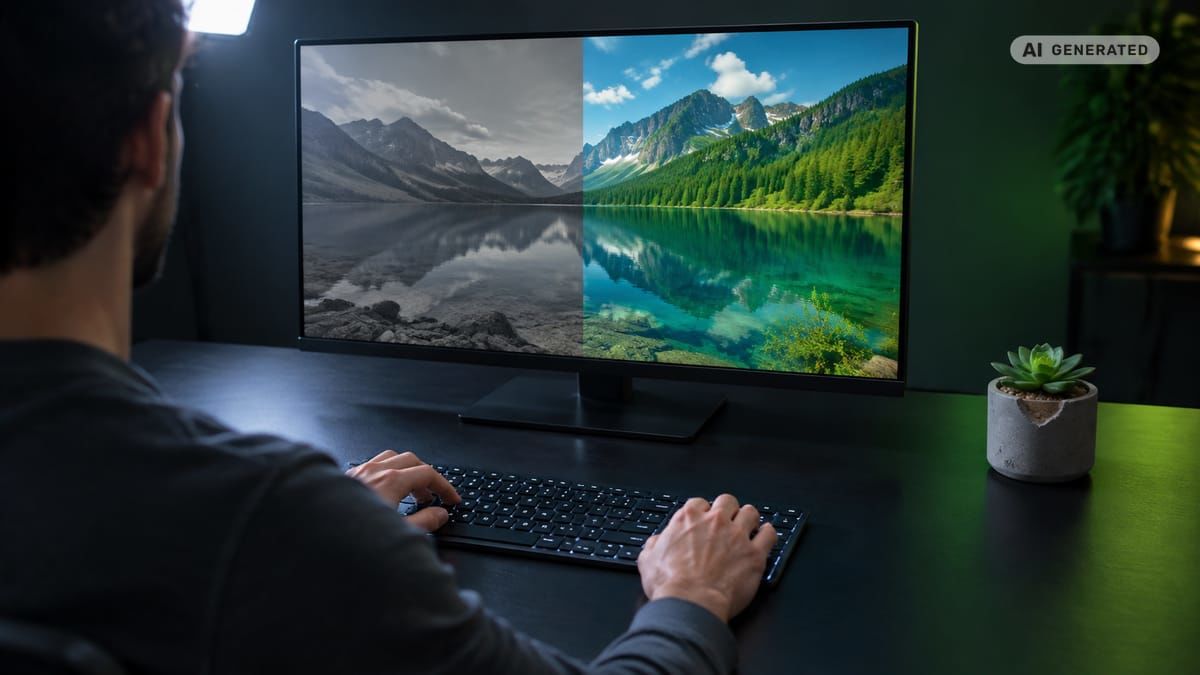
Which free editor fits each use case?
Start with the job, not the brand. The following recommendations reduce the risk of choosing an attractive tool that lacks the required export or editing control.
Background removal
Use a dedicated remover when the only requirement is isolating a subject. These tools generally identify the foreground automatically and produce a cutout far faster than manual tracing.
Remove.bg allows free low-resolution preview downloads, while full-resolution downloads require credits. That makes the free result useful for testing edge quality but potentially unsuitable for a product listing or print layout.
Inspect hair, translucent objects, glass, fur and contact shadows. These areas reveal masking errors that may remain invisible against a checkerboard preview.
Background replacement
Background removal and replacement are different operations. Removal creates transparency, while replacement must generate or insert a new scene and match perspective, light direction and color temperature.
Prompt-driven tools such as Adobe Express are more appropriate when a new environment must be generated. For a controlled composite using an existing background photograph, Photopea provides layers and masks for manual adjustment.
Product photography
Product work needs clean edges, accurate labels and predictable commercial rights. Photopea is useful for manual cleanup, Pixlr supports quick browser edits, and Canva can place the finished product into an advertisement or social template.
Avoid accepting the first generative result. AI can alter package text, logos, closures and small construction details. Compare the result with the original at 100 percent magnification before publication.
Portrait retouching
Snapseed suits mobile portrait adjustment, while Fotor and similar one-click tools are faster for simple enhancement. Use conservative settings because automated smoothing can remove skin texture or modify facial features.
A portrait test should check both eyes, teeth, ears, hair boundaries and jewellery. Facial realism is more important than a dramatic before-and-after effect.
Enhancement and upscaling
Enhancement adjusts qualities such as exposure, color or noise. Upscaling increases pixel dimensions, often while generating plausible detail. These functions should not be treated as identical.
A good upscale preserves text, repeating patterns and facial structure. Compare the processed file with a conventional resize, then inspect it at full output resolution rather than relying on the small online preview.
Social media graphics
Canva is the clearest fit when a photograph must become a complete designed asset. Its templates, text tools and basic AI functions keep image editing and layout inside one workspace.
Pixlr is preferable when the photo requires more direct editing before publication. Export a master image separately so the edited photograph can be reused in more than 1 layout.
Private or sensitive photographs
Local software is the safer workflow when files contain confidential client material, private family images or unreleased products. GIMP is free and open source, and compatible local AI extensions can perform selected operations without sending the original file to a cloud editor.
Local processing does not remove the need for secure storage. Keep backups encrypted, limit access and remove temporary exports after delivery.
Which option suits your device and skill level?
For beginners, button-driven editors reduce the learning curve. Fotor, BeFunky and Canva expose common functions through presets, sliders and templates, making them easier for fast marketing tasks.
Intermediate users may prefer Pixlr because it combines automated functions with familiar browser editing controls. It is a practical bridge between one-click enhancement and a complete layered editor.
Advanced users should consider Photopea when PSD compatibility and manual repair matter. Its support for more than 40 formats helps when files must move between different design applications. For more on free AI tools that deliver professional-quality results, see the dedicated guide.
Mobile photographers can start with Snapseed, especially when editing RAW captures. Browser tools are better for users who move between computers and cannot install software, while local desktop software suits privacy-sensitive work and larger files.
Skill level should also reflect the consequences of an error. A casual social post may tolerate a small artifact. A paid product campaign requires close inspection of labels, identity, transparency and export quality.
How do you edit a photo with AI?
A controlled workflow produces more reliable results than repeatedly pressing an automatic enhancement button.
- Preserve the original. Create a separate working copy before uploading or changing the image.
- Choose one primary task. Decide whether the image needs enhancement, removal, replacement, upscaling or layout design.
- Select the appropriate editor. Use Photopea for layered control, Pixlr for browser editing, Canva for designed assets or Snapseed for mobile adjustment.
- Review access conditions. Check the account requirement, available credits, watermark and export resolution.
- Upload a safe test file. Avoid confidential material until the platform's privacy terms and deletion controls have been reviewed.
- Apply one major operation at a time. Separate background work, portrait correction and upscaling so errors are easier to identify.
- Inspect the result at 100 percent. Check faces, hands, edges, text, logos, reflections and repeating patterns.
- Export the correct format. Choose transparent PNG for cutouts and a suitable high-quality format for photographs.
- Verify the downloaded file. Confirm its pixel dimensions, color appearance, watermark status and metadata before deleting the working project.
For text-prompted edits, describe what should change and what must remain fixed. A useful instruction identifies the subject, replacement area, lighting, viewpoint and protected details in one concise request.
What limits make a free plan unusable?
"Free" can describe a permanent editor, a limited monthly allocation, a low-resolution preview or a temporary trial. Those offers are not equivalent. Users looking for free AI photo editors that require no download or sign-up should pay particular attention to these distinctions.
Credits
Adobe Express reportedly provides 25 monthly generative credits on its free tier. A credit ceiling matters when every variation consumes an operation, especially if the tool produces inconsistent results. For a broader look at cost structures when free tiers are not enough, consult the AI image platform pricing guide.
Credits should be evaluated against the complete workflow. Background generation, object removal and upscaling may be billed as separate actions.
Watermarks and resolution
A watermark can make an otherwise successful image unusable for client work. Resolution caps create a similar problem when the free export is only suitable for evaluation.
Remove.bg illustrates the distinction by allowing low-resolution previews while requiring credits for full-resolution files. Test the free output, but confirm the final export conditions before processing an entire catalogue.
Accounts and payment cards
Photopea does not force free users to create an account. Other editors require registration to allocate credits or store projects, while some trials may ask for payment information.
An account is not automatically a disadvantage, but it creates another privacy and retention consideration. Use a business email and enable available security controls for client work.
Licensing
A free export does not necessarily include permission for advertising, product listings, stock submissions or paid client deliverables. Photoroom's free plan has been described as having monthly export restrictions and no commercial use. (zdroj: SaaS CRM Review)
Read the current terms for the exact plan, not a general marketing page. Save a dated copy of the applicable licence with the project records.
How should professionals check privacy and commercial rights?
Uploaded photos may contain faces, confidential designs, location data or client-owned intellectual property. Before using a cloud editor, examine its privacy policy and terms for five specific points:
- How long original uploads and generated outputs are retained
- Whether the user can delete files and projects manually
- Whether content may be used to train or improve AI systems
- Which employees or service providers can access uploaded files
- Whether commercial use is permitted on the free plan
Do not assume that deleting a browser tab deletes the uploaded image. Use the account's deletion control when available and verify whether backups follow a separate retention schedule.
Commercial permission also differs from ownership of the source material. A platform's licence cannot grant rights to a third-party logo, copyrighted character or photograph that the user did not have permission to upload.
For stock submissions, consult the marketplace's current rules on generative and AI-edited content. For advertising, retain the original, the edited master and the terms that applied on the date of production.
What professional workflow features matter?
A free AI tool for photo editing must fit the files and delivery standards used by the project. Attractive automation is not enough if the editor removes essential information or cannot export the required format.
RAW support
RAW editing provides greater latitude for exposure and color correction than working from a compressed copy. Snapseed version 4.1 added broad RAW support, making it relevant to mobile photographers who want a no-cost workflow.
Layers and file compatibility
Photopea's PSD support and compatibility with more than 40 formats make it the strongest option in this list for layered browser editing. Layers allow a user to isolate AI-generated changes and revise them without flattening the complete composition.
Transparent PNG export
Transparent output is essential for product cutouts, logos and compositing. Verify that transparency survives the download and that fine boundaries do not contain white or dark halos.
Metadata and color
Some web editors may alter or remove EXIF metadata during export. Test one non-sensitive file before relying on metadata retention, particularly when delivery requires copyright, capture or location information.
Color profiles also affect consistency between browsers, design tools and print. Compare the exported file in the software used for final production.
Batch processing
Batch capability matters when editing dozens or hundreds of photographs. Imagen offers a free real estate editing trial covering 250 photos without a credit card, illustrating how a trial can be more useful for volume testing than a small monthly credit allocation.
Run a short representative batch first. It should include bright, dark, detailed and difficult images rather than 10 nearly identical photographs.
AvocAIdo tip
When the project requires new branded imagery rather than correction of one existing photo, AvocAIdo can generate four interpretations in parallel using Grok Imagine, Seedream 5 Lite, NanoBanana 2 and GPT Image 2. Reference images can establish a visual style, while ArtDirector AI converts plain-language descriptions into optimized prompts. The platform also includes editing, resizing, zoom and 4K upscaling features across its plans. You can review the workflow on the AvocAIdo homepage or compare available plans on the pricing page.
Frequently asked questions about free AI editing
Is there a completely free AI photo editor?
Photopea offers a permanent free browser editor without a forced account or watermark, and it supports more than 40 file formats. Snapseed is also free without advertisements or in-app purchases for mobile editing. Generative operations are more likely to use limited monthly credits than conventional adjustments.
Which free option is best for beginners?
Canva is suitable for beginners creating social posts because it combines photo tools, templates and basic AI features in one interface. Fotor and BeFunky are alternatives for one-click correction. Test at least 1 export before starting a larger project so you can identify watermarks or resolution restrictions.
What is the best free editor without a download?
Photopea is the strongest browser option for layers and PSD files, while Pixlr combines conventional controls with quick AI-assisted functions. Pixlr's free core editor provides unlimited saves but displays advertisements. Choose Photopea for manual precision and Pixlr for a faster automated workflow.
Can free AI-edited images be used commercially?
Commercial rights depend on the tool and plan. Some free plans restrict business use, including Photoroom's documented personal-use limitation, so a successful export is not proof of permission. Before publishing 1 product image or advertisement, read and save the current terms for the exact plan.
Can AI improve a blurry or low-resolution picture?
AI upscaling may increase dimensions and generate plausible detail, but it cannot verify detail that the camera never captured. Inspect faces, package text and patterns at 100 percent after processing. Compare the result with a normal resize to ensure the AI has not invented misleading features.
Which editor is best for RAW photos on a phone?
Snapseed is a practical free mobile option because version 4.1 added broad RAW support in 2026. RAW files allow more adjustment flexibility than compressed copies, particularly for exposure and color. Preserve the original file and export a separate edited version rather than overwriting the capture.
How can I protect private photos when using AI?
Choose local processing for sensitive client or family photographs whenever possible. For a cloud tool, check retention, manual deletion and AI-training terms before uploading even 1 confidential image. Remove unnecessary EXIF location data and delete the online project after downloading and verifying the final file.
Next step
If you need to create new images in a consistent visual style, start an AvocAIdo account and test a representative reference set. The free trial includes 4,000 credits and does not require a credit card. Compare the four outputs, inspect brand details and keep the strongest result for further editing. To learn more about how to choose the right AI photo editing tool, read the dedicated decision guide.
Zdroje
Ready to create your own images?
Bring a brief or a reference image. Explore the possibilities with four AI models.
Free credits to start · No credit card